Viewing Feedback
Once your teacher finalises a submission, it moves to the Marked Submissions section of your dashboard with a green Finalised tag. Click into it — or open it from the Assignments tab inside the class — to read the full feedback.
The submission page opens with your work on the left and the feedback panel on the right. At the top of the page, you'll find controls to flip through pages, download a PDF, and see your grade.
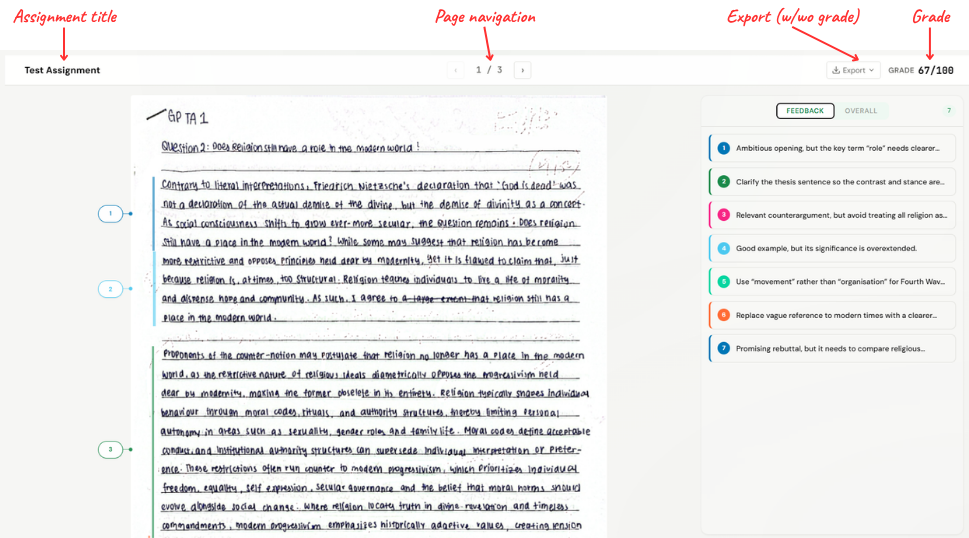
Your Work, Annotated
Your submission sits on the left as a PDF with the AI's annotations overlaid on top. Each annotation is a coloured box on a specific section — click one to see its detail in the right-hand panel. For QnA assignments, annotations are labelled by question (e.g. Q1(a)(i)).
The Feedback Panel
The right-hand panel shows feedback for the page you're viewing. What you see depends on the assignment type.
Essay assignments show two tabs:
- Feedback — every annotation on the current page, in order. Click a card to highlight its location on the PDF.
- Overall — three colour-coded sections summarising your whole submission:
- Strengths (green) — what you did well
- Areas for Improvement (amber) — where you fell short, with why
- Action Steps (blue) — concrete things to try next time
QnA assignments show just the Feedback tab — comments grouped by question, with the score for each (e.g. 2 / 2).
If your teacher left a general comment, it appears at the top of the feedback area — a personal note about the submission as a whole, separate from the AI-generated breakdown.