Submitting Work
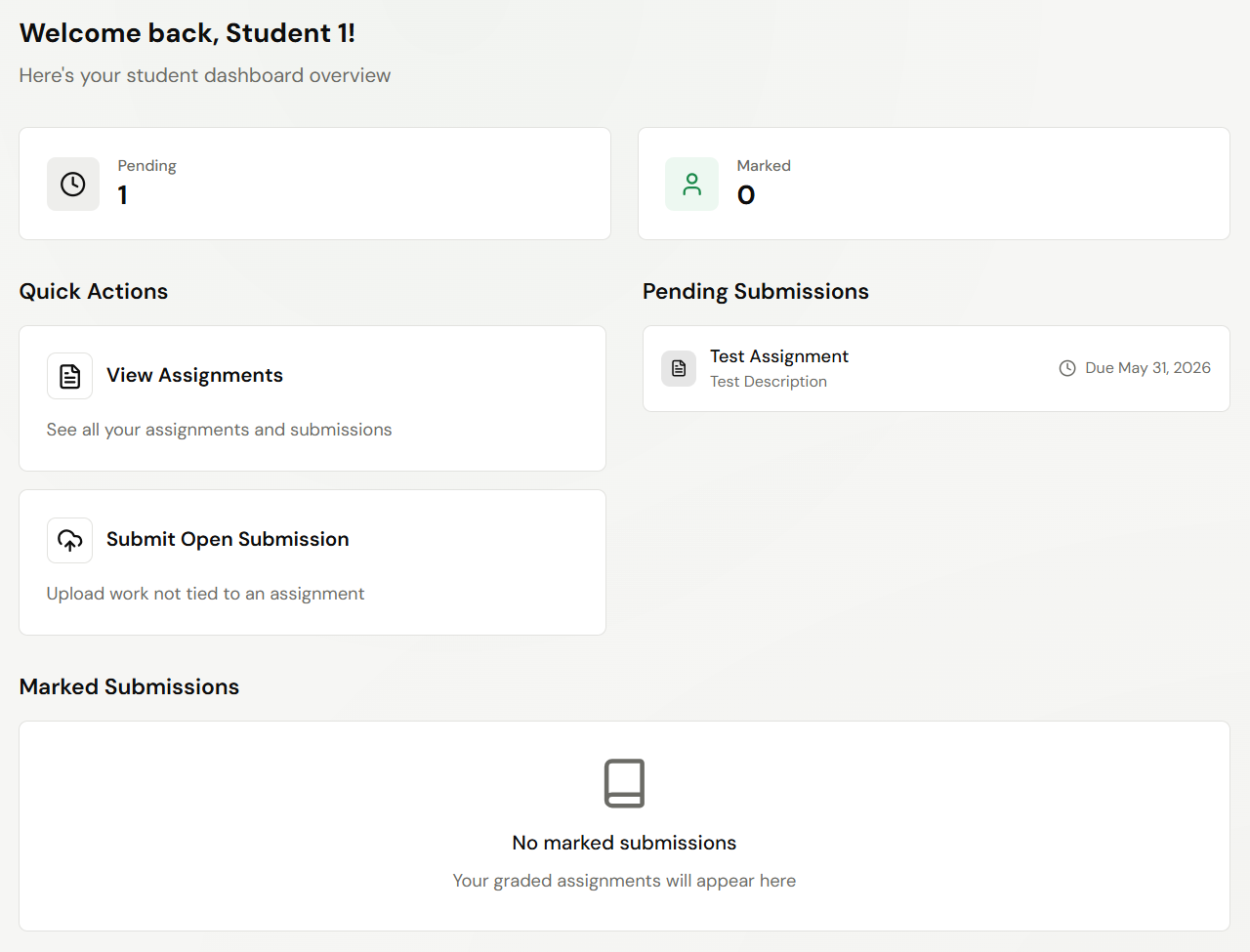
When your teacher creates an assignment, it appears in your Pending Submissions list on the dashboard and under the class in your sidebar. Submitting your work usually takes less than a minute, and the AI starts marking the moment you upload.
Opening an Assignment
- Click any pending assignment from the dashboard, or open it through the sidebar under Classes → [your class] → Assignments
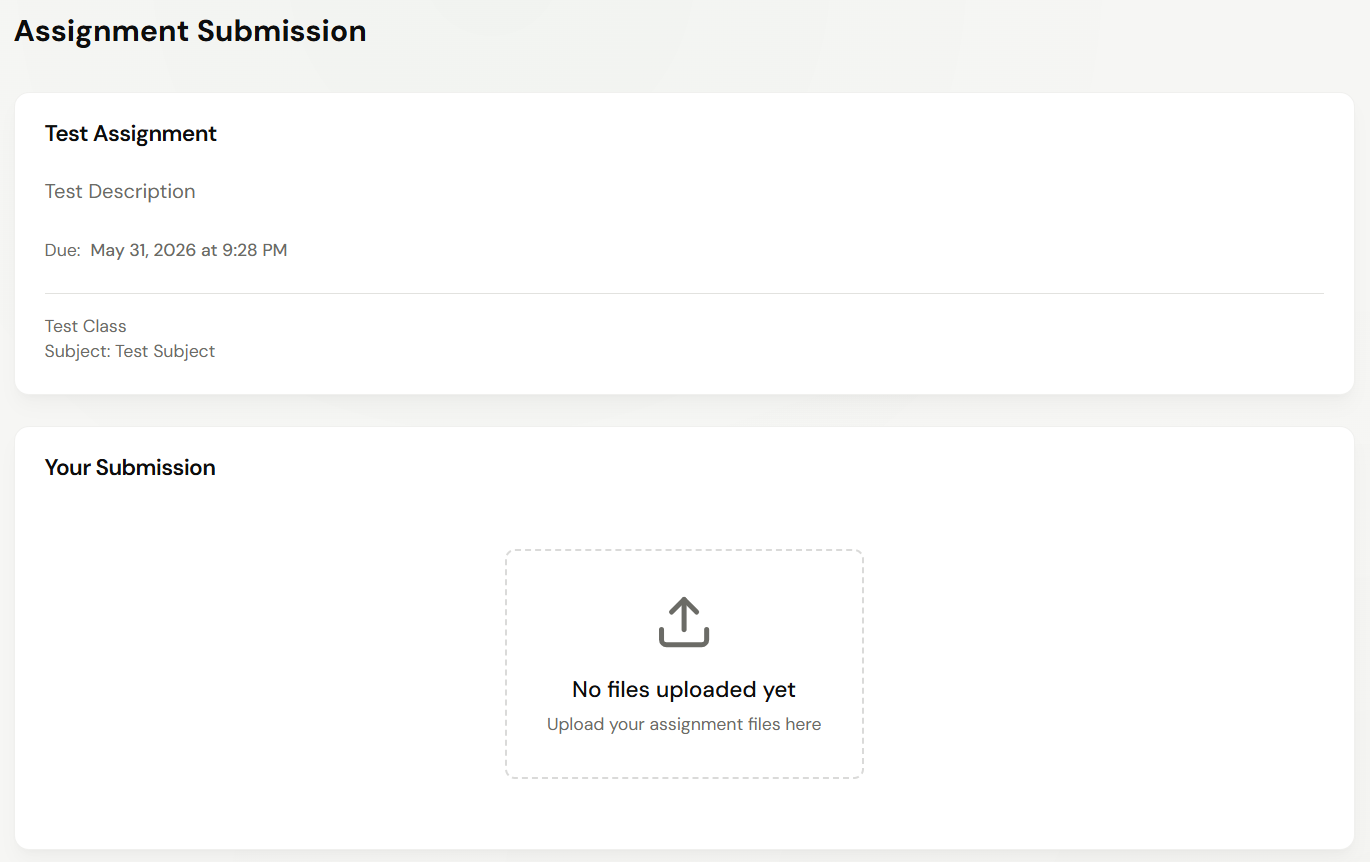
- The Assignment Submission page shows the assignment title, description, due date, class, and your current submission status
Uploading Your Work
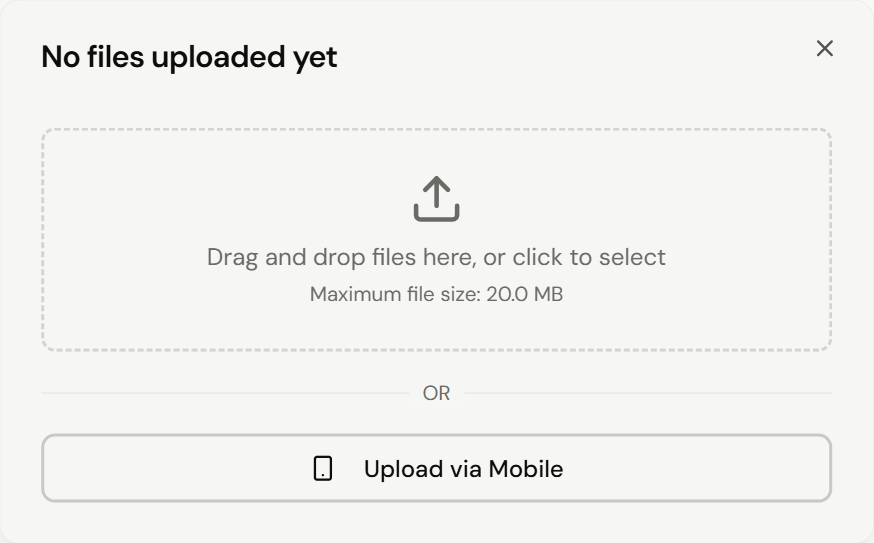
Click the Upload your assignment files here area on the Assignment Submission page to open the upload dialog. You'll see two ways to submit:
- Drag and drop, or click to select files from your computer — supports PDF, Word, and image files (the platform converts non-PDFs automatically)
- Upload via Mobile — opens a QR code; scan it with your phone camera to upload directly from your phone
The maximum file size is shown in the dialog. You can upload one combined PDF or multiple files — they'll be attached to the same submission.
Phone Photo Upload
If you've handwritten your work on paper, the mobile upload flow is the easiest way to submit:
- Click
Upload via Mobilefrom the upload dialog - Scan the QR code with your phone camera — your phone opens the Upload Documents page
- Choose how to add your work:
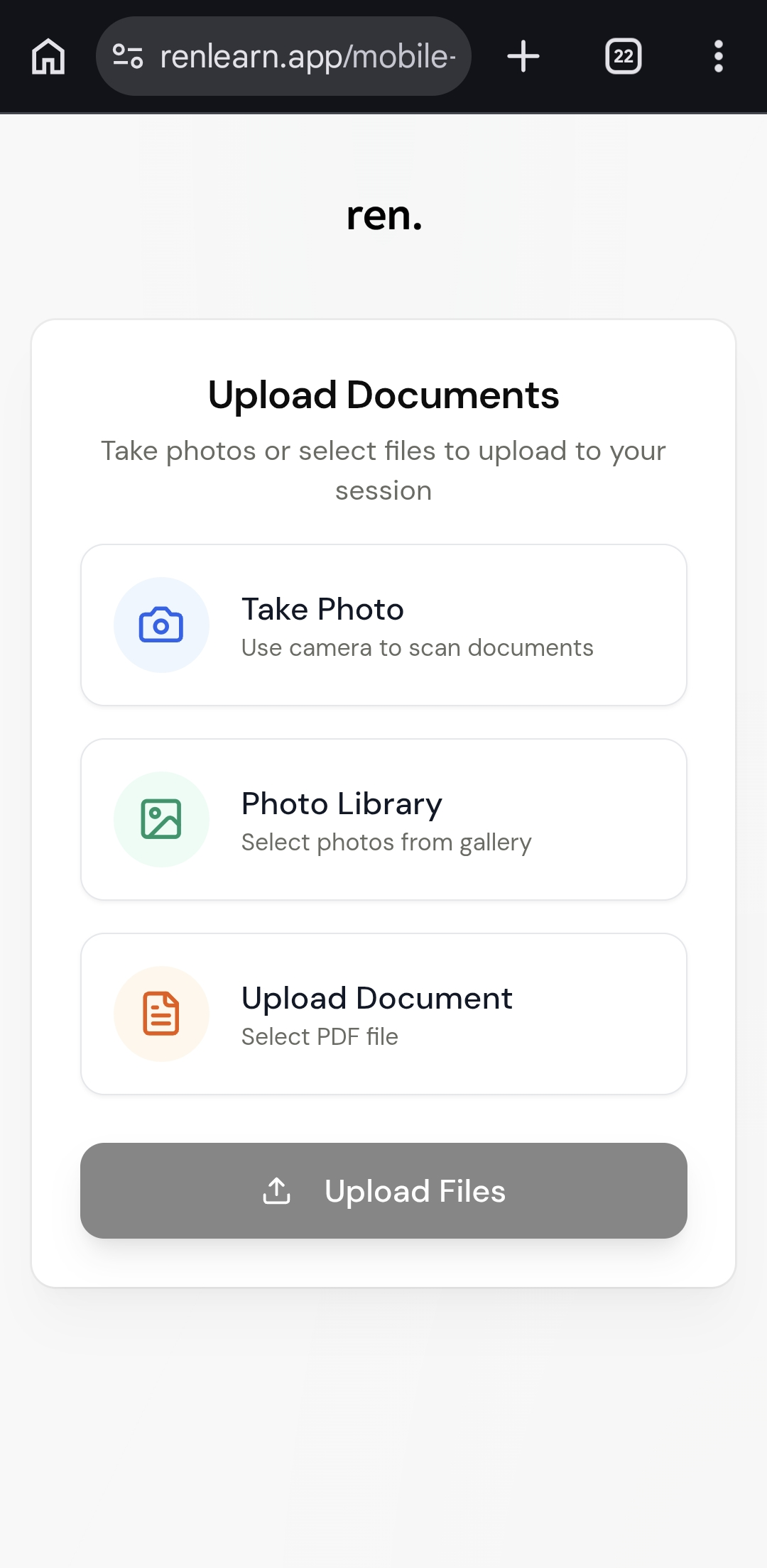
- Tap Upload Files to send everything to your submission
- ren. automatically stitches the pages together and runs handwriting recognition on them — no manual scanning required
- Photograph in good lighting
- Lay your paper flat on a desk
- Make sure the entire page is in frame
- Take one photo per page, in order
After you tap Upload Files on your phone, give it a little time before your files appear on the Assignment Submission page on your computer. The page doesn't refresh on its own — reload it after a short wait and you'll see your uploaded files in the Your Submission section.
After Submitting
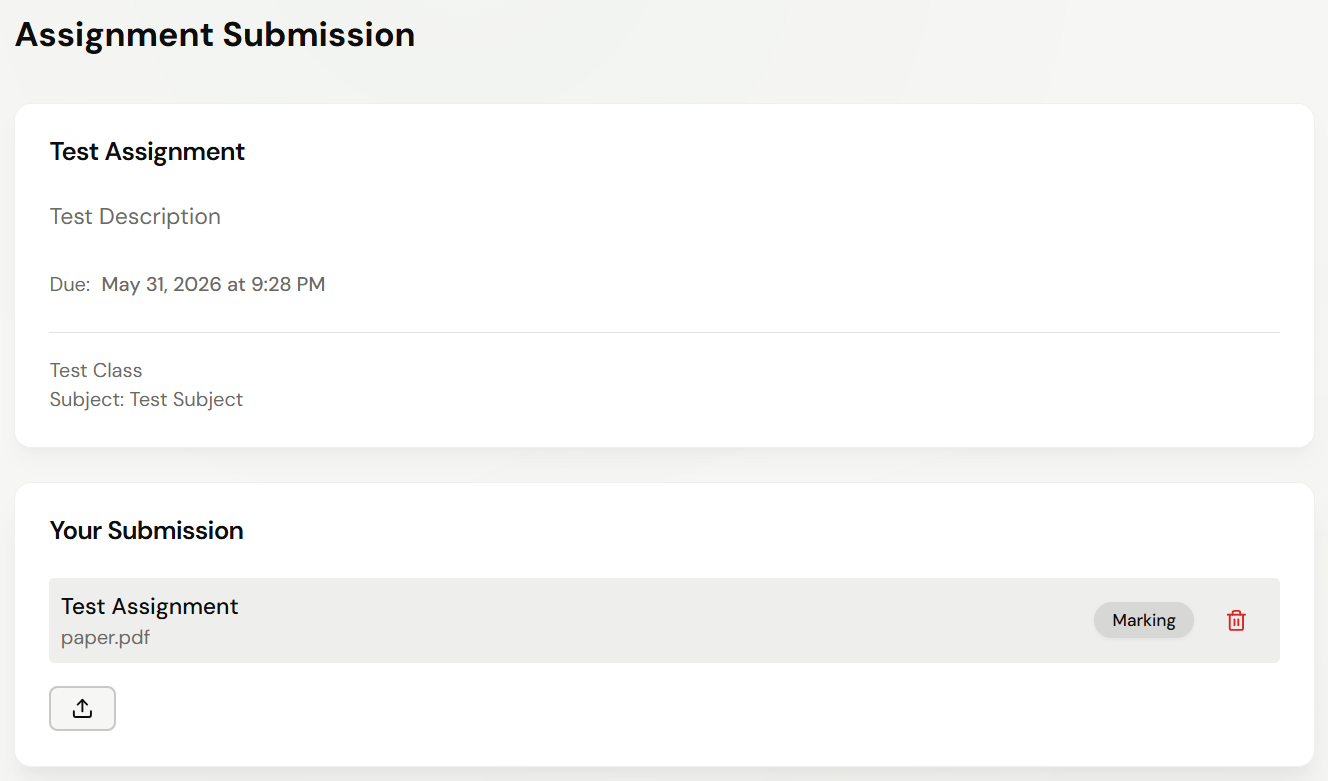
Once your files have uploaded, the Your Submission section on the Assignment Submission page shows the uploaded file with its current status badge:
- The submission is sent to your teacher automatically
- The AI begins reading your work and preparing feedback in the background
- The status badge shows where your submission is:
- Marking — your work is being processed. The AI marks it first, then your teacher reviews and adjusts the feedback.
- Finalised — your teacher has released the detailed feedback and you can view it in full
(You may briefly see a Marked badge between these two — it's just a transitional step and usually clears within a minute.)
Once the AI has finished, your grade appears on the assignments list straight away — even while the badge still says Marking. The detailed feedback (paragraph-by-paragraph comments, overall feedback, and question breakdowns) only unlocks when your teacher has reviewed it and the submission shows as Finalised.
Once your submission is finalised, it moves into the Marked Submissions section of your dashboard. Click into it to read the full feedback — see Viewing Feedback for what to expect.
If a file is rejected (e.g. wrong file type, illegible, or empty), you'll see a Rejected badge with a brief reason. If you think it's a mistake, contact your teacher — they can upload your work on your behalf.