Dashboard
The Dashboard is the first page you see after logging in. It gives you a quick overview of your teaching activity.
When you first create an account, your dashboard will look like this:
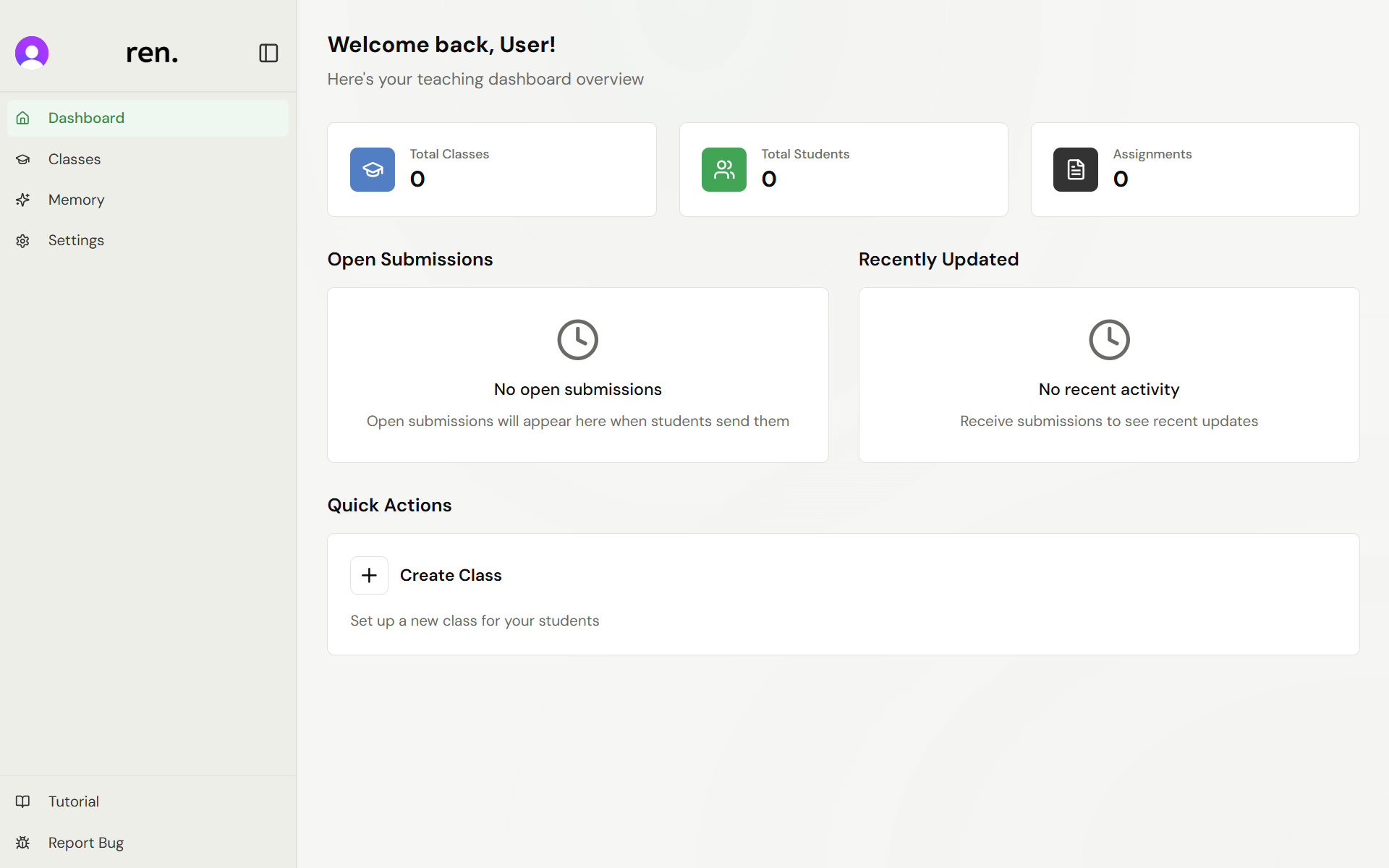
Everything starts at zero, and the Quick Actions panel surfaces Create Class so you can set up your first class straight away. As you add classes, students, and assignments, the dashboard fills in automatically.
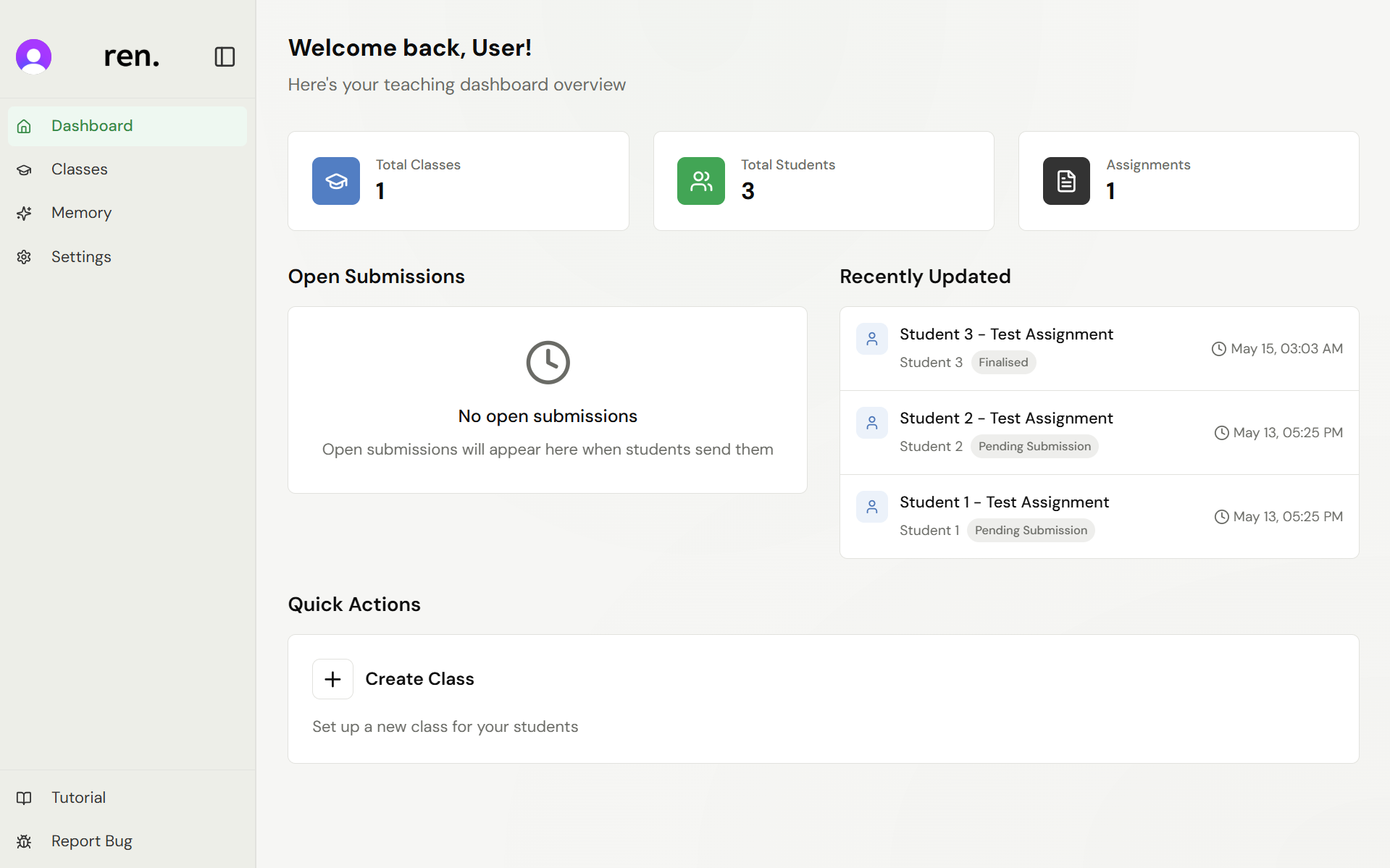
Once you've created some classes, your dashboard will look more like this:
The three summary cards at the top show:
- Total Classes — the number of classes you have created
- Total Students — the total number of students across all classes
- Assignments — the total number of assignments you have created
Below the summary cards:
- Open Submissions — submissions that are currently in progress from students. Once a student begins work on an assignment, their submission appears here until it is submitted. Until then, you'll see "No open submissions"
- Recently Updated — a feed of the most recently updated submissions across all your classes, showing the student name, assignment title, current status (e.g. Needs Marking, Pending Submission), and the date of the last update. Until students start submitting work, you'll see "No recent activity"
You can click any item in Recently Updated to open that submission directly.
Relevant Guides
- Creating a ClassSet up your first class and add students
- Marking AssignmentsThe full marking workflow, from opening a submission to finalising a grade