Classes
A class in ren. is the container for everything else you do as a teacher — your students, assignments, lessons, and resources all live inside one. Setting up a class is the first thing most teachers do, and once it exists you can layer on Students, Assignments, Lessons, Class Resources, and Reports.
Creating Your Class
-
Click on the Classes tab in the sidebar. This is where all your classes live
-
Click the
Add New Classbutton to open the Create New Class dialog
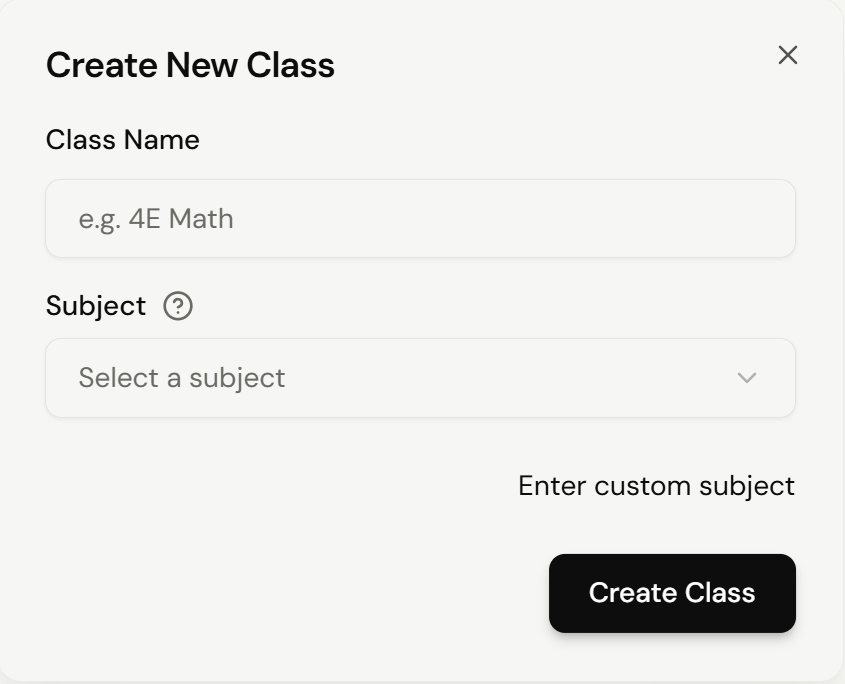
- Enter your Class Name (e.g. 4E Math), then open the Subject dropdown to pick from the predefined list (e.g. Chemistry, O-Level English)
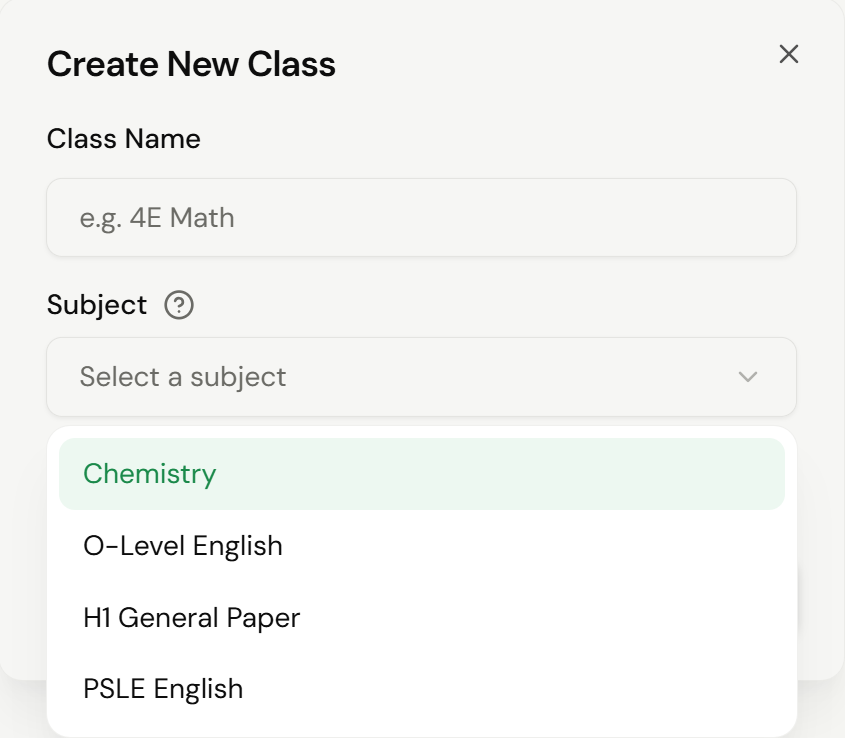
- If none of the predefined subjects fit, click
Enter custom subjectand type your own (e.g. English for a GP Class). You can switch back at any time usingSelect existing subject
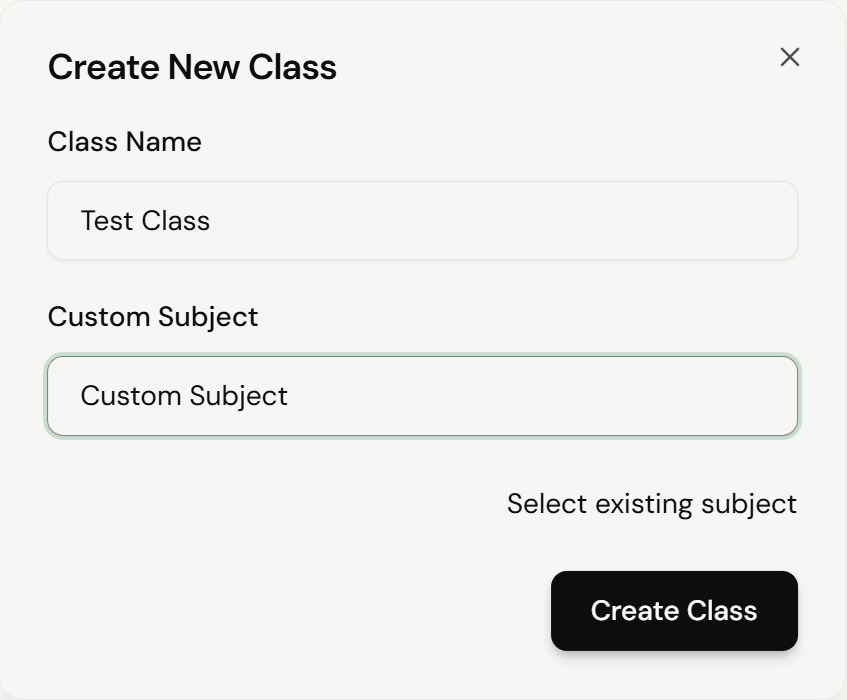
- Click
Create Classto finish. Your new class will appear on the Classes page
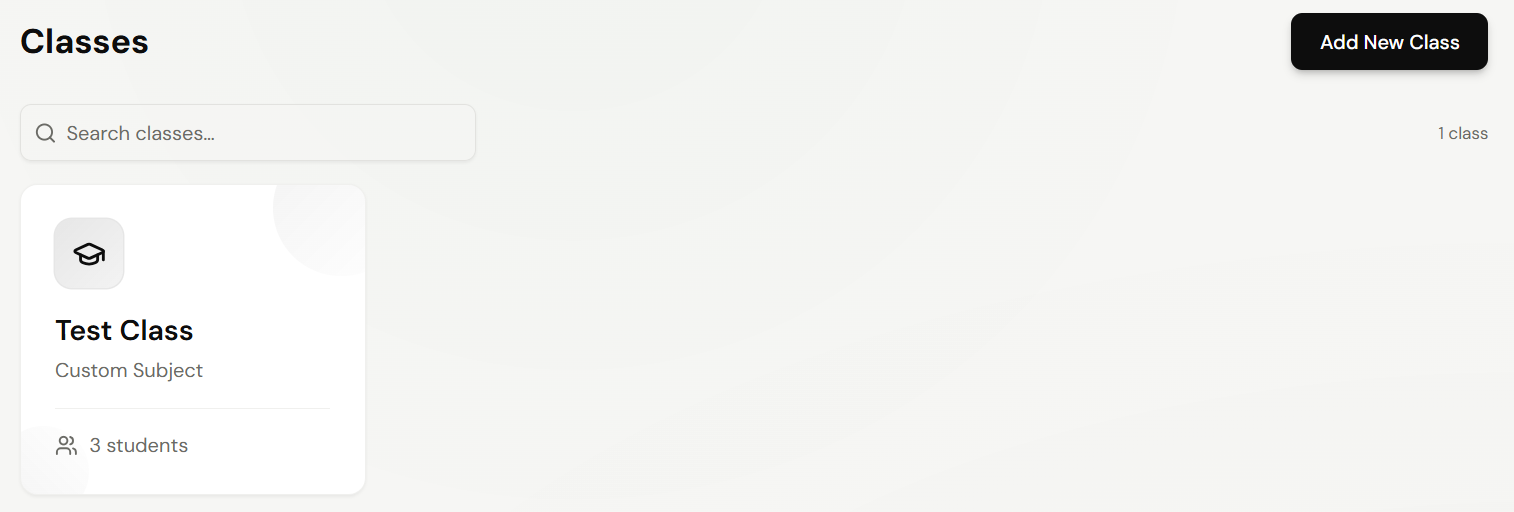
Finding a Class
As your class list grows, use the Search classes... bar at the top of the Classes page (shown above) to filter by class name. The count on the right updates as you type.
Editing and Deleting Classes
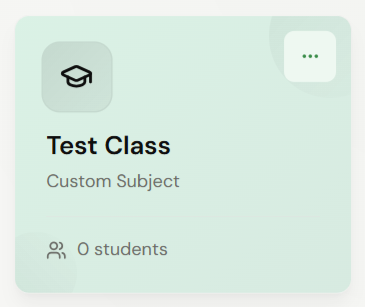
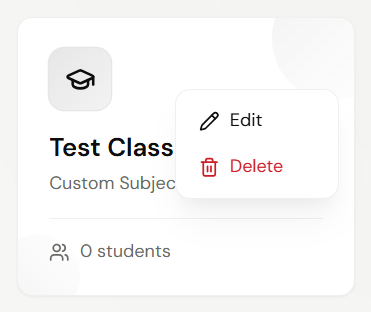
Open the ... menu at the top right of the Class Card for Edit and Delete options
Next Steps
- StudentsAdd students to your class and invite them
- AssignmentsSet up assignments for your class
- Class ResourcesShare teaching materials with your students
- LessonsOrganize content by topic or unit