Mark by student or by question
Once ren. has marked the scripts, there are two ways to check them. Both save the same marks, and you can switch at any time.
You can come straight here after you click Start grading and choose Grade everything now. If you chose to mark a few first, finish that, and come here once ren. has marked the rest of the class.
| By student | By question | |
|---|---|---|
| What you do | Open one student's script and check every question, then move to the next student. | Check Q1 for every student, then Q2, and so on. |
| Good for | Seeing each student's whole script. Essays. | Marking the same way for everyone. Long structured papers. |
| Works on | Every paper | Structured papers only, after you approve the answer scheme |
Choose how to mark

- Open the assignment.
- Above the list of submissions (next to Search students), open the menu that says By student.
- Choose By student or By question.
By student
Practise this firstTry marking a sample script one student at a time. Takes about a minute. Uses sample students, and nothing is saved.Open practice
- Click a student's row. Their script opens in the marking screen.
- Check each mark, and change any you disagree with. See Check and change marks.
- Click Mark as Complete at the top right. ren. opens the next script that still needs marking.
On the script:
- A dashed box is ren.'s suggested mark. Students do not see it unless you accept it.
- A solid box is a mark you accepted or made yourself.
In the top bar:
- The arrows either side of the student's name, at the top left, move between students without finishing. Click the name to pick a student from the list.
- The question box in the middle, for example Q1 2 marks, jumps to a question. Its arrows move to the previous or next question.
- Click Assignment at the far left to go back to the assignment page.
Closed a banner? It shrinks to a small tag in the top bar. Click the tag to read it again.
By question
Practise this firstTry marking one question for the whole class in a practice class. Takes about a minute. Uses sample students, and nothing is saved.Open practice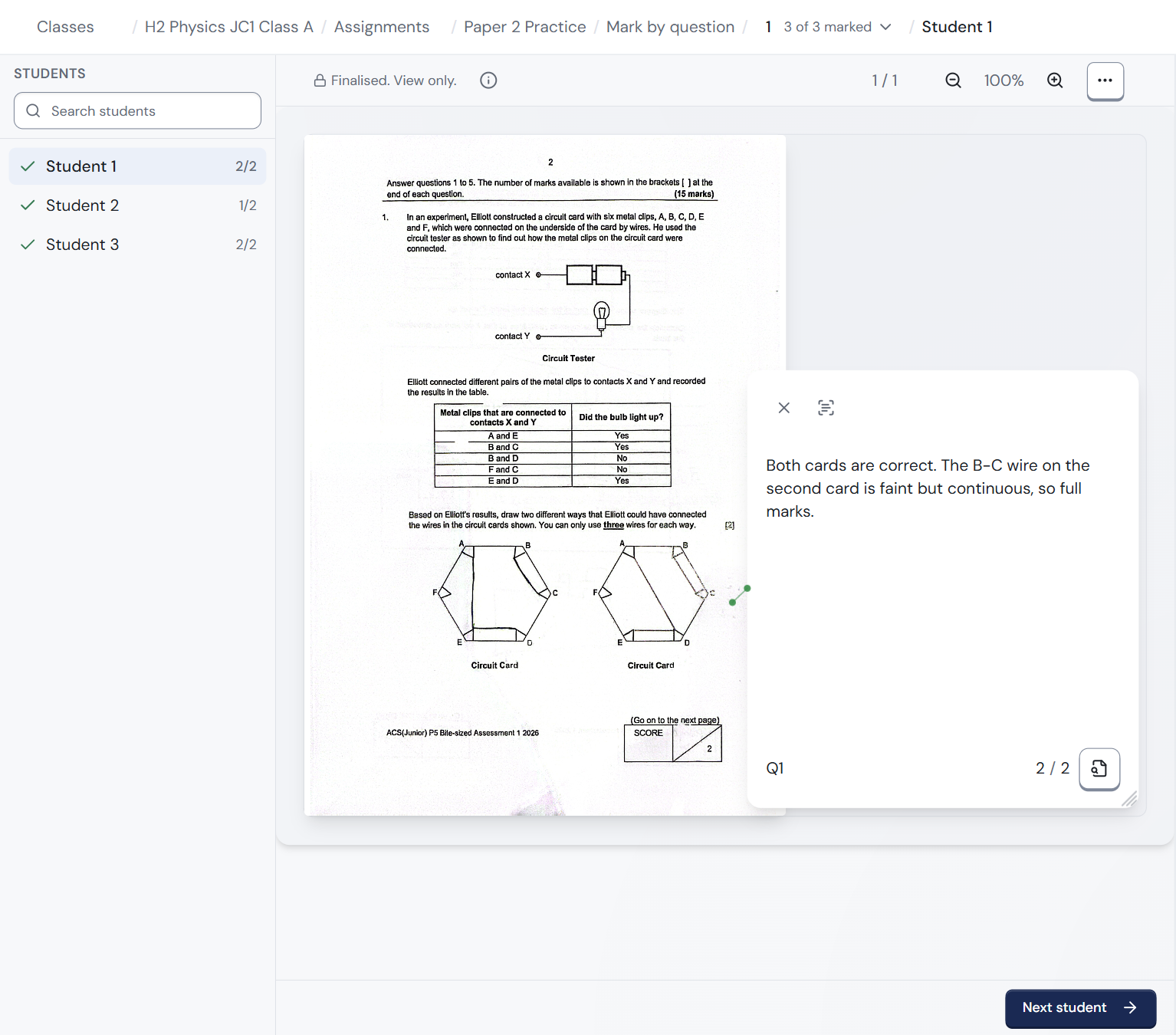
- Choose By question (see above).
- ren. opens question 1. The top bar shows the question and your progress, for example 1 3 of 3 marked. Click it to pick a different question.
- Each student's script opens at their answer to that question. The students are listed on the left under Students, with a tick and their mark once it is checked. Use Search students to find a name.
- Check the mark, and change it if you need to, the same way as in Check and change marks.
- Click Next student. Your marks save as you go.
- When every student is done, click the question number in the top bar and pick the next question.
A script you have already finished shows Finalised. View only. above it. To change it, see Change a mark on a finished script.
Some keyboard keys work differently when you mark by question. See Keyboard shortcuts.
What's next
- Check and change marks: how to accept, change and add marks.
- Release results when the whole class is marked.