Mark a few scripts yourself first
Before ren. marks the whole class, you can mark up to three scripts yourself (sometimes called calibration). ren. compares your marks with its own, then suggests changes to the answer scheme (your marking scheme) so it marks the rest the way you would.
We recommend this for any new paper, especially essays, where markers' judgement differs most.
This step is optional. To skip it, choose Grade everything now when you start marking, then check ren.'s marks by student or by question.
Practise this firstTry marking a few sample scripts and reviewing ren.'s suggestions in a practice class. Takes about two minutes. Uses sample students, and nothing is saved.Open practiceBefore you start
- Your scripts are uploaded and you have checked the answer scheme.
- You chose Let me mark a few myself first when you started marking. See Start marking.
1. Choose your sample scripts
- Open the assignment. A banner says See how the AI grades before you mark everyone.
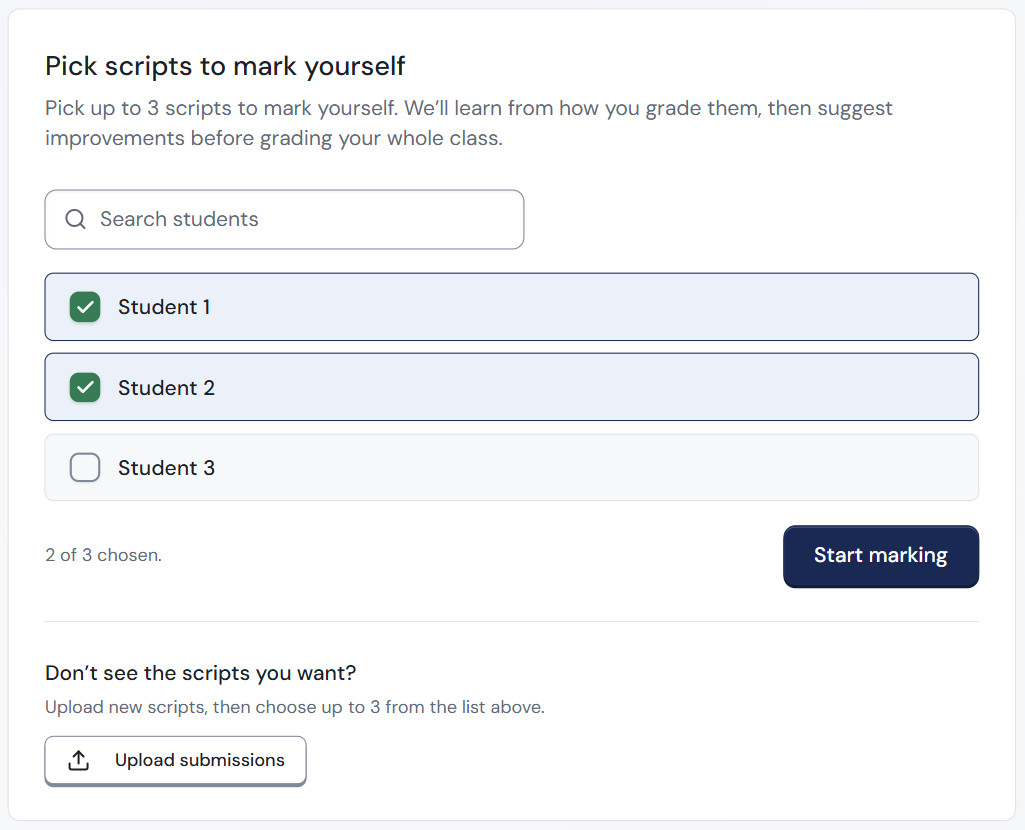
- On the assignment page, click Choose sample scripts. The Pick scripts to mark yourself page opens. It explains that ren. learns from how you grade them, then suggests improvements before grading your whole class.
- Tick up to three students. Use Search students to find a name. A counter shows your choice, for example 2 of 3 chosen.
- Click Start marking.
Students marked No file uploaded yet cannot be picked. To add more scripts, click Upload submissions under Don't see the scripts you want?, then choose up to three from the list.
Choose a strong script, a middling one and a weak one. ren. learns more from a range.
Meanwhile, the other scripts show Awaiting calibration. ren. does not mark them until you finish.
2. Mark the sample scripts
- The first sample opens in the marking screen. A banner says Sample script 1 of 3 and asks you to mark this one yourself.
- Mark it as you normally would (see Check and change marks).
- Click Mark as Complete at the top right of the marking screen.
- The next sample opens. Repeat until all are done.
Marking a sample as complete does not show anything to students; they see nothing yet.
3. Review ren.'s suggestions
After your last sample, ren. takes a moment to compare marks. Then the Review marking suggestions page opens. It shows where your marking differed from ren.'s own.
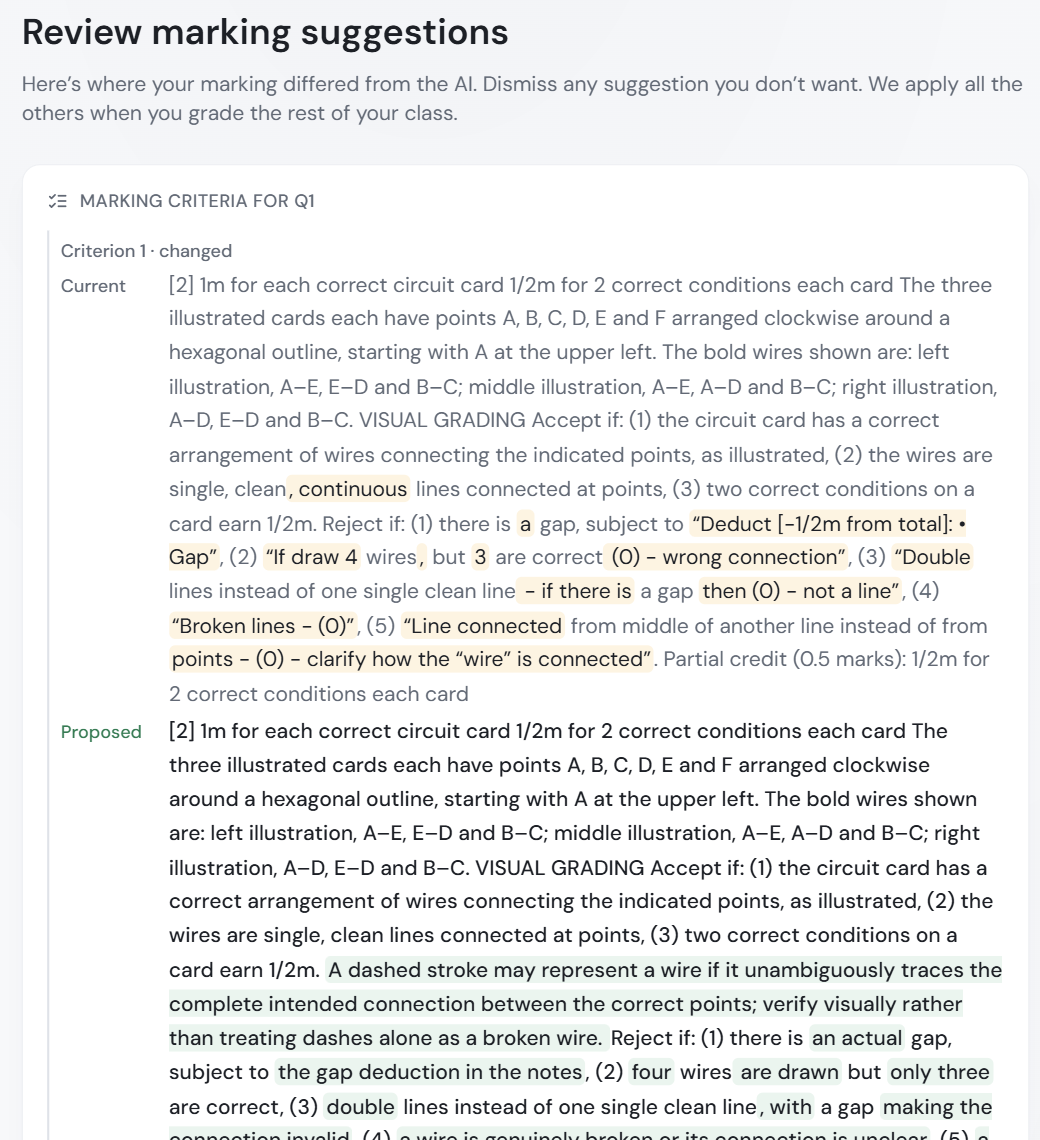
- Read each card. It names the question, for example Marking criteria for Q1, and which criterion changed, for example Criterion 1 · changed.
- Compare the Current wording with the Proposed wording. Proposed shows the new wording ren. suggests for your marking criteria. The changed text is highlighted.
- Click Dismiss on any suggestion you do not want. Changed your mind? Click Undo to bring it back.
- Keep the ones you agree with. ren. applies all the others when it marks the rest of your class.
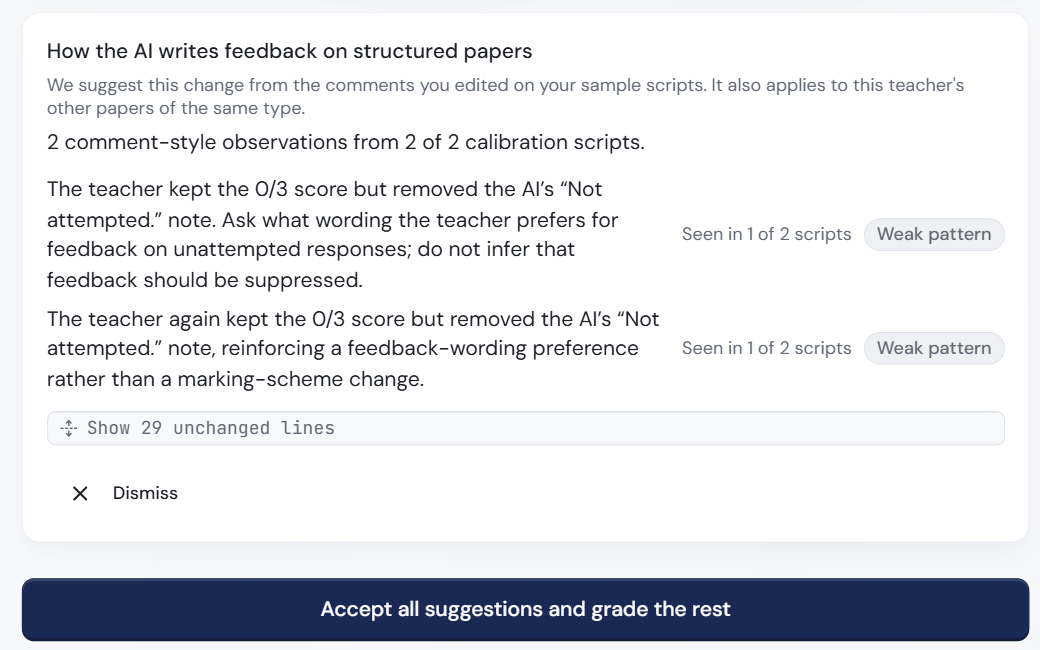
Some cards may suggest changes to your feedback style guide (how you like feedback written), for example How the AI writes feedback on structured papers. These come from the comments you edited on your sample scripts, and also apply to your other papers of the same type. Each observation shows how often it was seen, for example Seen in 1 of 2 scripts, and may be tagged Weak pattern. Click Show n unchanged lines to see the rest of the guide. See Your marking style.
If your marking matched ren.'s, the page says so and there is nothing to change.
4. Let ren. mark the rest
- Click the button at the bottom of the page. Depending on what you kept, it says Finish and grade the rest of my class, Accept all suggestions and grade the rest, or Accept the other n suggestions and grade the rest.
- ren. updates the answer scheme for every student in this assignment, using the suggestions you kept.
- ren. then marks the rest of the class. The assignment page tells you when it is done.
Suggestions you dismiss are never used. Your marks on the sample scripts are kept.
Changed your mind? Click Skip and grade everyone now on the assignment banner at any time, then click Skip and grade to confirm. ren. marks the whole class with the current answer scheme.
What's next
- Check and change marks on the rest of the class.
- Your marking style: see and edit how ren. writes feedback.