Create a class
Create your class
- Click Classes in the left sidebar.
- Click Create Class at the top right.
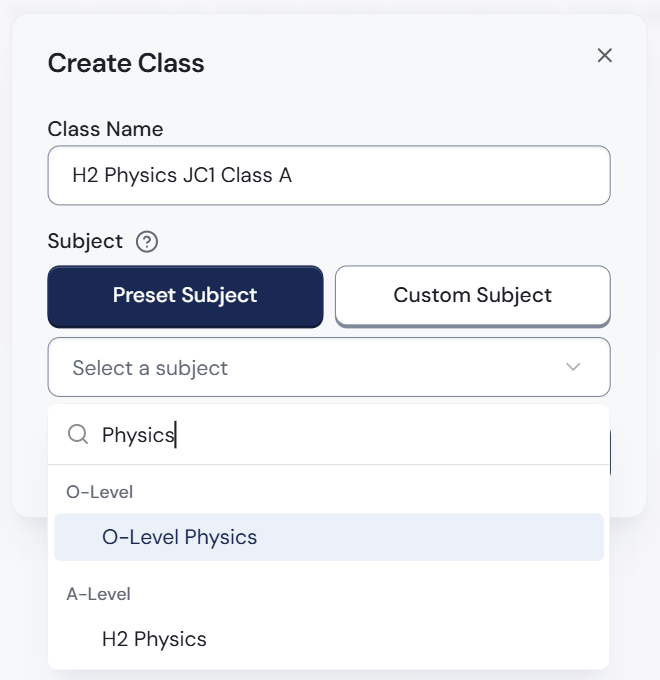
- Type a Class Name, such as H2 Physics JC1 Class A.
- Click Select a subject, type your subject and click it. Not in the list? Click Custom Subject and type its name.
- If you see a Department box, choose your department.
- Click Create Class. The class's Students page opens, ready for you to add students.
Find a class later
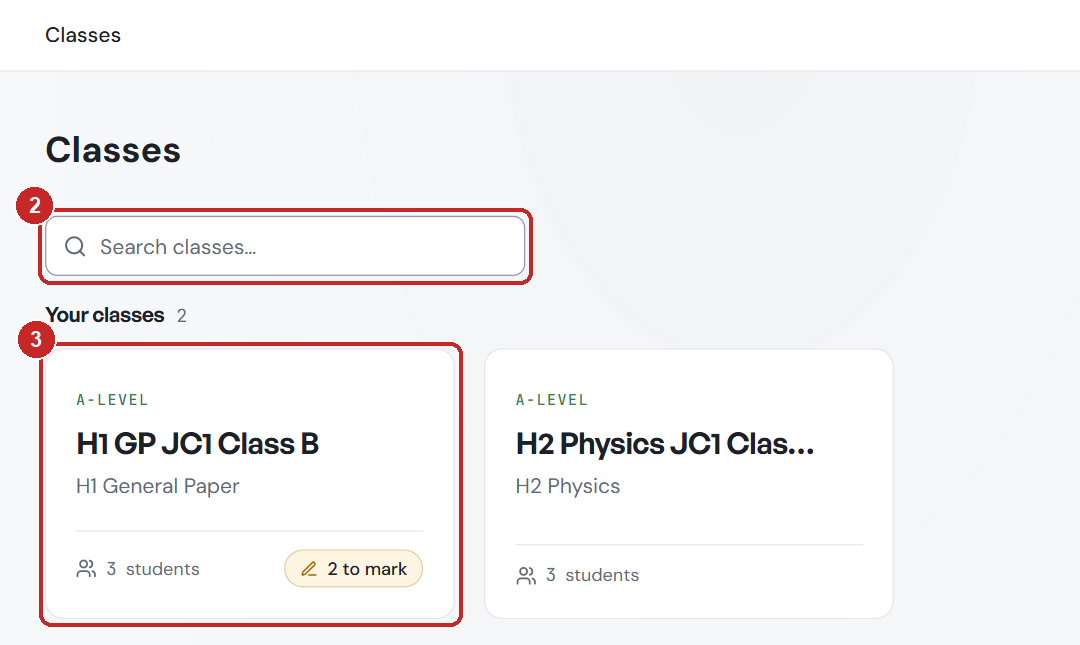
- Click Classes in the left sidebar.
- Type part of the class name into Search classes… at the top.
- Click the class card to open it.
Already inside a class? Click Switch class in the class menu.
Change the class name or subject
- Open the class.
- Click Edit class in the class menu on the left. The Edit Class box opens.
- Change the Class Name or Subject.
- Click Save Changes.
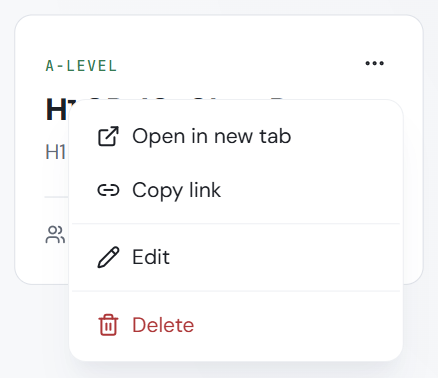
Or, on the Classes page, click the ... button on a class card, then Edit.
Delete a class
- Click Classes in the left sidebar.
- Click the ... button on the class card.
- Click Delete, then Delete again to confirm.
This cannot be undone
Deleting a class removes its assignments, scripts, marks, lessons and resources, for you and your students. Students' accounts and their other classes are not affected.
Next: add students to your class.