Check the answer scheme (marking scheme)
For a Structured paper, ren. reads each question and its marks from your answer scheme (your marking scheme). Check what it read, fix any mistakes, and approve it.
ren. marks every script with the answer scheme you approve, so checking carefully here is the best thing you can do for accurate marking.
Before you start
- Create the assignment and upload your answer scheme. See Create an assignment.
- Wait for ren. to finish reading it, usually a few minutes. The assignment page shows Reading answer scheme while it works.
No answer scheme to approve (for example, an essay where you chose Not yet)? Skip this page and start marking with the Start grading button; see Start marking.
Practise this firstTry checking and editing an answer scheme in a practice class first. Takes about a minute. Uses sample students, and nothing is saved.Open practiceOpen the answer scheme
The answer scheme opens by itself when ren. finishes reading. To reopen it later, click Answer scheme at the top of the assignment page.
Your questions are on the left and your answer scheme file on the right. Click Hide answer key for more room. At the top, Draft means it is not approved yet, and Saved means your changes are saved as you go.
The check has three steps, shown along the top: Check the question list, Check each question and Approve.
Step 1: Check the question list
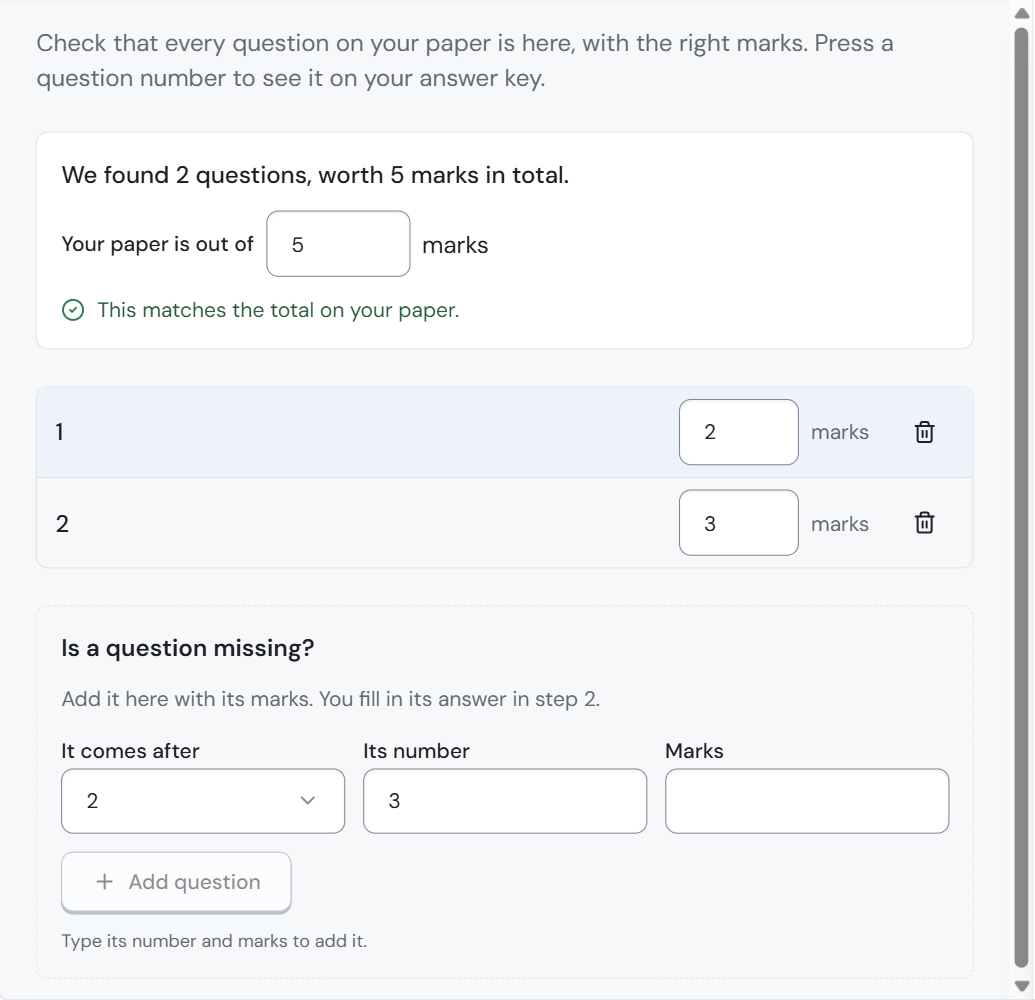
The screen asks you to check that every question on your paper is here, with the right marks.
- Read the line at the top, for example We found 2 questions, worth 5 marks in total.
- In Your paper is out of, type the total printed on your paper. If it matches, you see This matches the total on your paper.
- Check the marks for each question in the list. Click a question number to see it on your answer scheme. Type over any marks that are wrong.
- To remove a question that should not be there, click the bin icon on its row.
- If a question is missing, go to Is a question missing?:
- In It comes after, choose the question it follows.
- In Its number, type its number, for example 3.
- In Marks, type its marks.
- Click Add question. It works once you have typed its number and marks. You fill in its answer in Step 2.
- Click Next: check each question.
If the total does not match
If the questions add up to a different total, a yellow warning appears under the box instead, for example The questions add up to 5 marks, but your paper is out of 7 marks. Look for a missing or repeated question.
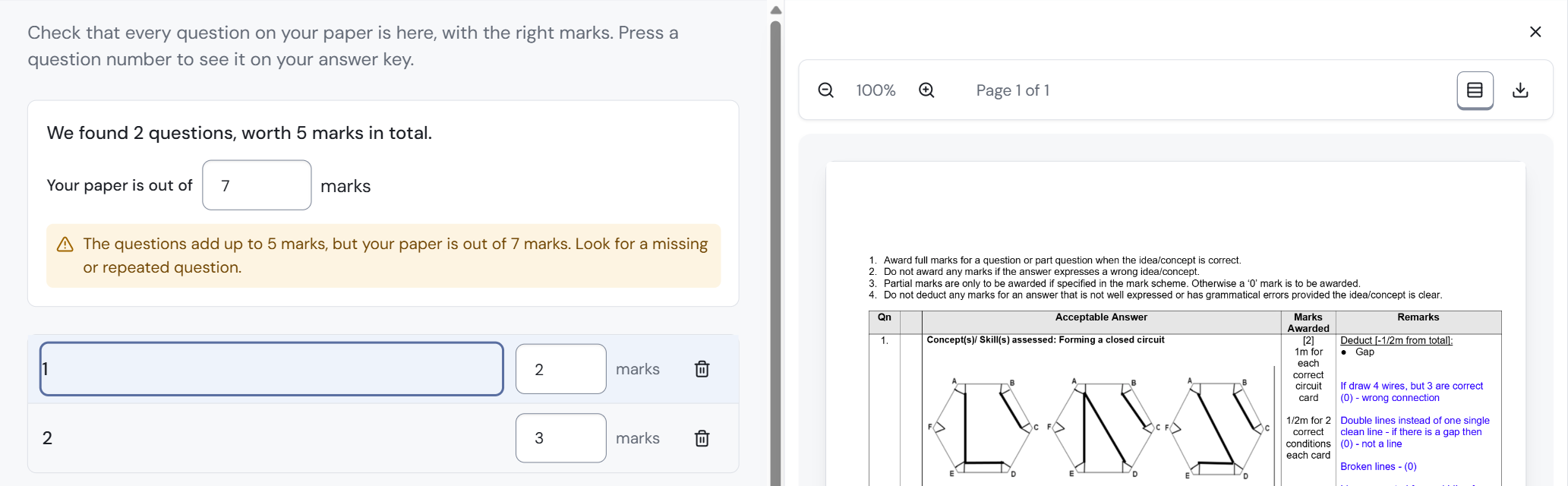
This usually means ren. missed a question, read one twice, or read some marks wrongly. Compare the list with your answer scheme on the right:
- A question is missing: add it under Is a question missing?
- A question is there twice: click the bin icon on the extra row.
- The marks are wrong: type the right marks over them.
When the total matches, the warning changes to This matches the total on your paper.
The warning does not stop you approving, so fix it before you go on.
Step 2: Check each question
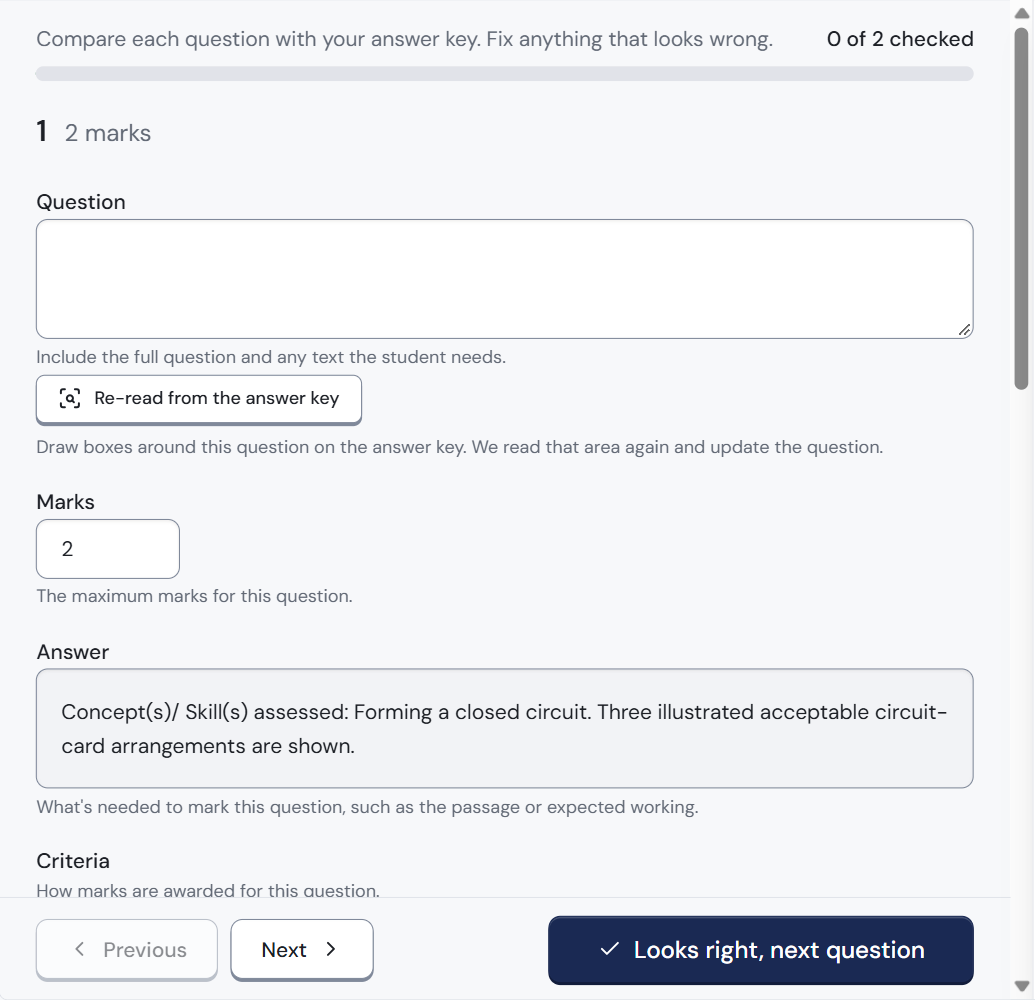
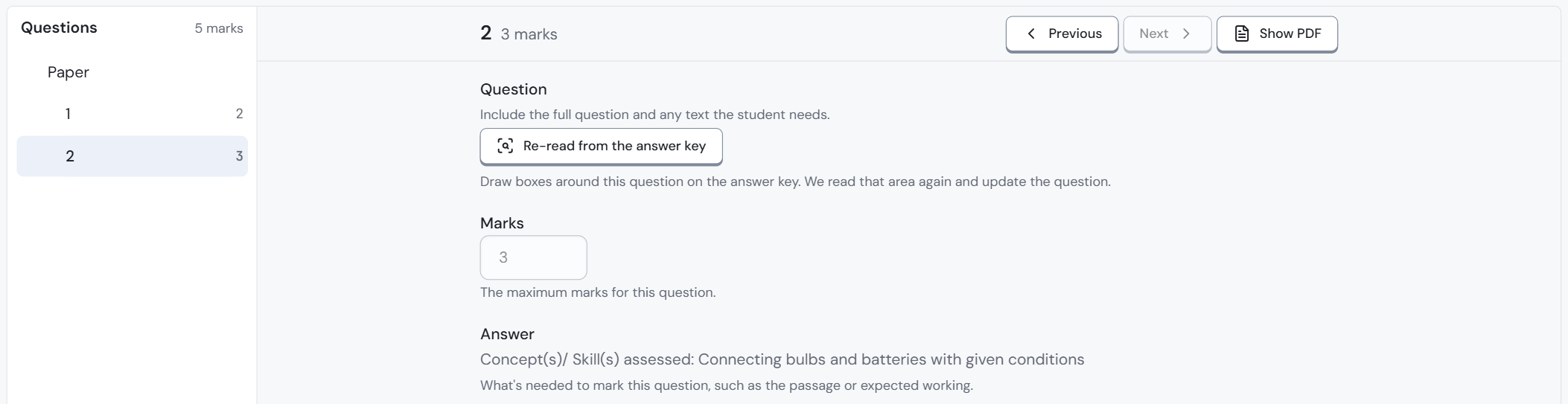
For each question, compare these boxes with your answer scheme and fix anything wrong:
- Question: the question text, and any text the student needs.
- Marks: the most marks a student can get for this question.
- Answer: what ren. needs to mark it, such as the passage, the expected working or key points.
Below these, Criteria shows how marks are awarded for the question.
A counter at the top shows your progress, for example 0 of 2 checked. When a question is right, click Looks right, next question. On the last question, the button says Looks right. Previous and Next move around without ticking a question off.
If ren. read a question wrongly, ask it to read that part again:
- Click Re-read from the answer key.
- On your answer scheme, draw a box around the question. ren. reads that area again and updates the question. You can keep working while it reads.
Step 3: Approve

- Check that you see You checked every question. The summary above it shows the total, for example 2 questions, 5 marks in total.
- Click Approve at the bottom right, or Back to keep editing. The Draft label goes away and your answer scheme is approved.
When the scripts are uploaded, start marking from the assignment page with Start grading. See Start marking.
Need to stop halfway? Click Finish later at the bottom left. Your work is saved as a draft; come back with the Answer scheme button.
Other ways to edit
- Edit everything on one screen: click this at the bottom to see all questions in one list. Click a question to edit it.
- Answer scheme copilot: click this at the top right and type the change you want, for example "Question 3 is worth 4 marks".
If you change it after marking has started
Fix the answer scheme before you start marking if you can. Once scripts are marked, the answer scheme shows Locked · already marked, so it cannot be changed by accident. You can still change it:
- Click Answer scheme at the top of the assignment page, then Edit answer scheme. The label changes to Editing · not applied yet.
- Make your change, for example type the right marks for a question.
- Click Check what this changes. A yellow box shows what your change affects, such as a new total for the paper and how many scripts are already marked.
- Click Apply to every class. Nothing is saved until you do this. To keep things as they were, click Cancel, then Discard in the Discard these edits? box (or Keep editing to go back).

The change applies to every class that uses this assignment.
Remark the answers that used the old version
Marks already given do not change by themselves. Instead, a yellow banner at the top of the assignment page says which question changed and how many answers used the old answer scheme. Marks you changed yourself are kept; the banner tells you how many, for example 1 answer you edited stays as it is.

On the right of the banner are Show me how and Not now. Not now leaves the marks as they are.
Finished scripts it affects show Check marks in the list. For each one:
- Open the script.
- Click Unfinalise.
- A bar says how many questions need your decision before the script can be marked complete, for example 1 question needs your decision before this script can be marked complete. For each changed question, choose:
- Keep this mark: keep the mark given before the question changed.
- Re-mark: have ren. mark the answer again with the new answer scheme.

Fixing the answer scheme before you click Start grading saves marking scripts twice.