Release results to students
Nothing reaches students until you click the release button yourself.
The short version
- Mark each script as complete when you have checked it. Before your first release, students do not see it yet.
- Release results to let students see their marks and feedback. Only finished scripts are released, so you can hold back one student.
- You can take it back with Hide results.
- When you release, students see their marks and feedback straight away.
- Email depends on your settings. If Email my students when their results are released is on (see Settings), each student with an email address gets one email, the first time their marked work is released. If it is off, students are not emailed; they see their results the next time they open ren. The release box tells you which applies.
- After the first release, each script you mark as complete reaches that student at once, without releasing again. Only click Mark as Complete when you are happy for the student to see it.
Mark each script as complete
Check the AI marks on each script first. See Check and change marks.
- Open a student's script in the marking screen.
- When you are happy with the marks, click Mark as Complete at the top right.
- If some AI marks are still waiting for you, a box asks Mark as complete? Choose to accept them or click Complete without them.
- ren. opens the next script. On the assignment page, the finished script moves to the Marked card with a Finalised label. Once results are released, the label changes to Released.
Finish the whole class at once
- Click Accept all marks above the To review list.
- A box asks Mark all as complete? For AI suggestions you have not accepted, choose Use the AI's suggestions (recommended) or Complete without them (students only see what you added yourself).
- Click Mark N submissions as complete.
Scripts with no marks or feedback yet are skipped and stay in To review.
Release the results
- Finish each script (see Mark each script as complete).
- Go back to the assignment page. The bar at the top shows how many scripts are Marked (and how many are still To review), with a Not released tag (a padlock icon) next to the button.
- Click Release results.
- A box called Release results to students? explains who will see what. Read it.
- Click Release to N students (N is the number of finished scripts). A message says, for example, Results released to 3 students.
The Not released tag changes to Released, the button changes to Hide results, and a note says Scripts you mark complete from now on are released to the student straight away.

If a finished script is not quite ready, a note under the button says so, for example 1 marked script is still preparing feedback.
Release when the whole class is marked, so everyone gets feedback at the same time. If a student was absent, mark their script later; it reaches them as soon as you finish it.
The page says "updated results are ready to release"
Now and then ren. cannot send a finished script by itself, for example when its marks needed a check first. The assignment page then shows n updated results are ready to release. and Students do not see these results yet. Click Release updates to send them to students.
Undo a release: hide results again
Changed your mind? Click Hide results on the assignment page, where Release results was. There is no confirm box: results are hidden straight away, a message says Results hidden from students, and the tag goes back to Not released. This hides the whole assignment, and students see their work as still being marked until you release again. While results are hidden, scripts you mark complete are not sent either. To show them again, release as before.
Change one script after releasing
- Open the finished script from the Marked card.
- Click Unfinalise at the top. That student stops seeing its results.
- Change the marks, then click Mark as Complete again. The new result goes to the student straight away.
If ren. stops you releasing, or asks you to release updates
"Results cannot be released yet"
This means you changed the answer scheme after some scripts were already marked complete (finished). ren. wants you to check those scripts before students see them. They show Check marks in the list (with an Out of date tag in the Grade column), and the top bar says how many are left, for example 2 to check before release, with the reminder Open each one, choose Unfinalise, check the marks, then mark it complete again.
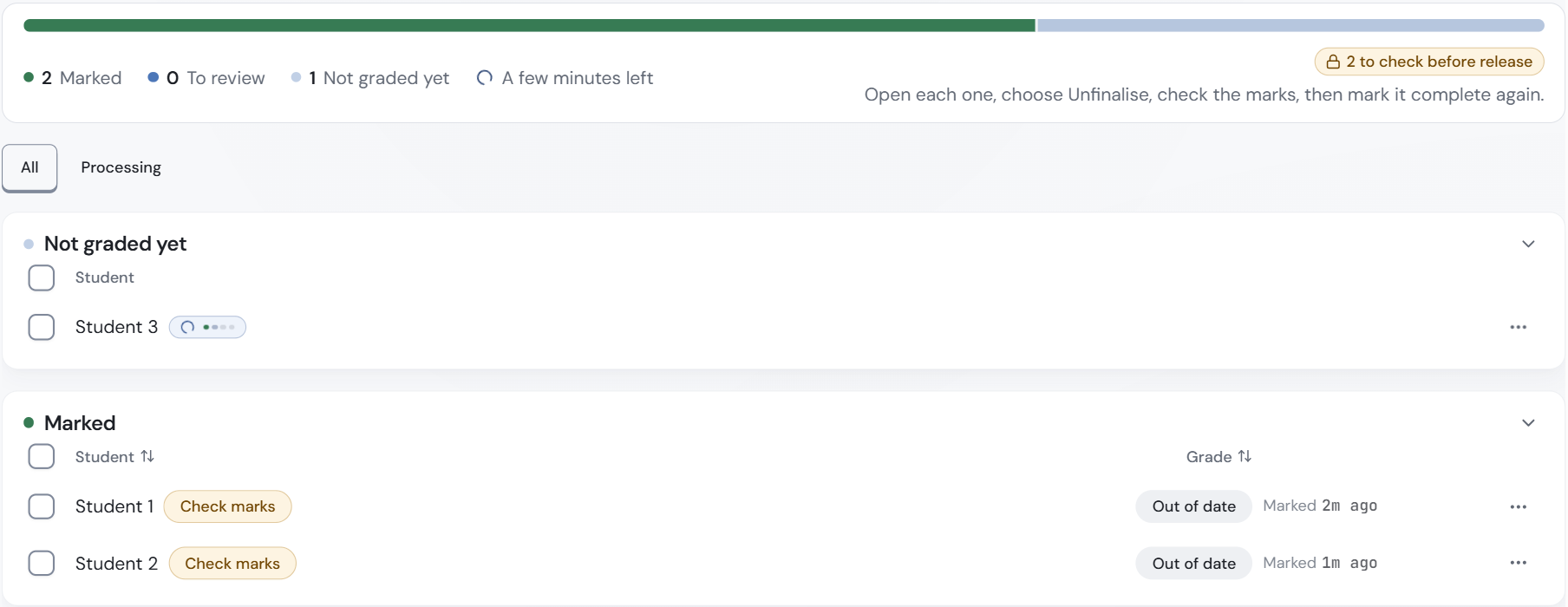
- Find the scripts that show Check marks in the list. The message names them too.
- Open each one and click Unfinalise.
- Check the marks, then click Mark as Complete again.
- Release the results again.
Students keep seeing anything you released before. If you have released before, the message says Released results stay visible. Updates cannot be released yet. The changed scripts wait until you check them.
"Release updates"
Sometimes ren. cannot send a finished script by itself. The page then says, for example, 1 updated result is ready to release. Click Release updates to send it to the student.
"Could not release results. No results are released. Try again."
Something went wrong and nothing was sent. Wait a moment and click release again.
Hide the marks but still give feedback
- On the assignment page, click Assignment settings, then Edit assignment details.
- Open Additional settings.
- Untick Show scores to students.
- Click Save Changes. Students see your comments but no marks. You still see the marks, and they still count in your reports.