Find your way around ren.
Your dashboard
Your dashboard (your home page in ren.) is the first page you see each time you sign in. To get back to it, click Dashboard in the left sidebar, or go to renlearn.app/main.
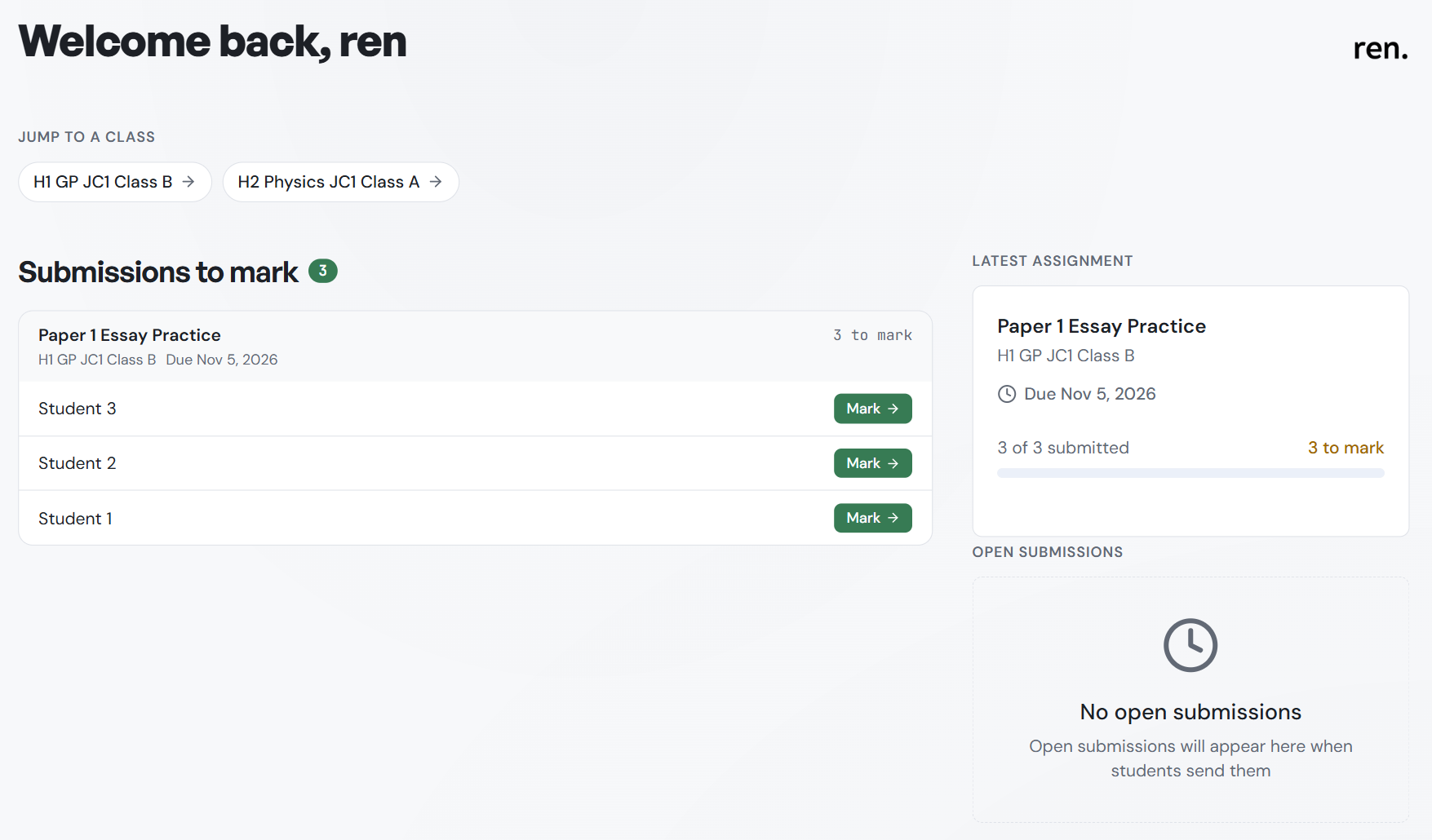
At the top it says Welcome back and your name. Below that you see:
- Jump to a class: one button per class, with an arrow. Click one to open that class in one click.
- Submissions to mark: every script waiting for you. A green badge next to the heading shows how many. Scripts are grouped by assignment, with the class, due date and how many are left, for example 3 to mark. Click
Marknext to a student to open that script. - Latest assignment: your most recent assignment, with its class, due date, how many students have submitted (for example 3 of 3 submitted), how many are left to mark and a progress bar.
- Open submissions: work students are sending in. If there is none, it says No open submissions and Open submissions will appear here when students send them.
When nothing is waiting, you see You're all caught up.
A brand new account may show a short setup guide with four steps. Follow it, or click I know my way around - skip setup guide to hide it.
The left sidebar
The left sidebar is on every page. From top to bottom:
- Workspace: the box at the top shows which school you are in. Click it to switch, if you belong to more than one school or department.
- Dashboard: your home page.
- Classes: all your classes.
- Organization: results, reports and marking activity across your school. Only shown in a school workspace.
- How AI marks: your own marking instructions for ren. See Your marking style.
- Settings: language, exporting scripts and email choices. See Settings.
- Tutorial: opens a practice class with sample students in a new tab, with short guided tours. Nothing you do there is saved.
- What's new: recent changes to ren. A green dot means something unread.
- Report Bug: tell the ren. team about a problem.
- Your name, at the bottom, with your picture or initials. Click it to manage your account or Sign out.
To narrow the sidebar, click the panel icon next to the ren. logo. It then shows only the icons above. Click it again to widen it.
The class menu
Inside a class, a second menu appears beside the sidebar:
- The class name and how many students it has.
- Edit class: change the class name or subject.
- Switch class: jump to another of your classes.
- Class code: the code students type to join this class, with a copy button.
- Assignments, Lessons, Class Resources, Reports and Students: the pages for this class.
You will use Assignments, Students and Reports the most.
To hide this menu, click the panel icon at its top right.