Create your teacher account
Before you start
- Your school email address, or a Google account.
- Your school's code (organisation code), if your school gave you one: up to 8 letters and numbers, for example A1B2C3D4.
Sign up
- Go to renlearn.app/sign-up.
- Check that the Teacher tab at the top is selected (dark blue), not Student.
- Type your first and last name under Name (two boxes: First name and Last name).
- Type your school Email address.
- Type a Password of at least 8 characters.
- Click
Continue. ren. emails you a short verification code (it proves the email is yours). - Type the code from the email into Verification code, then click
Verify. Wrong email? Click Back to email.
Or click Continue with Google (below the or line) instead of steps 3 to 7. You then need no ren. password.
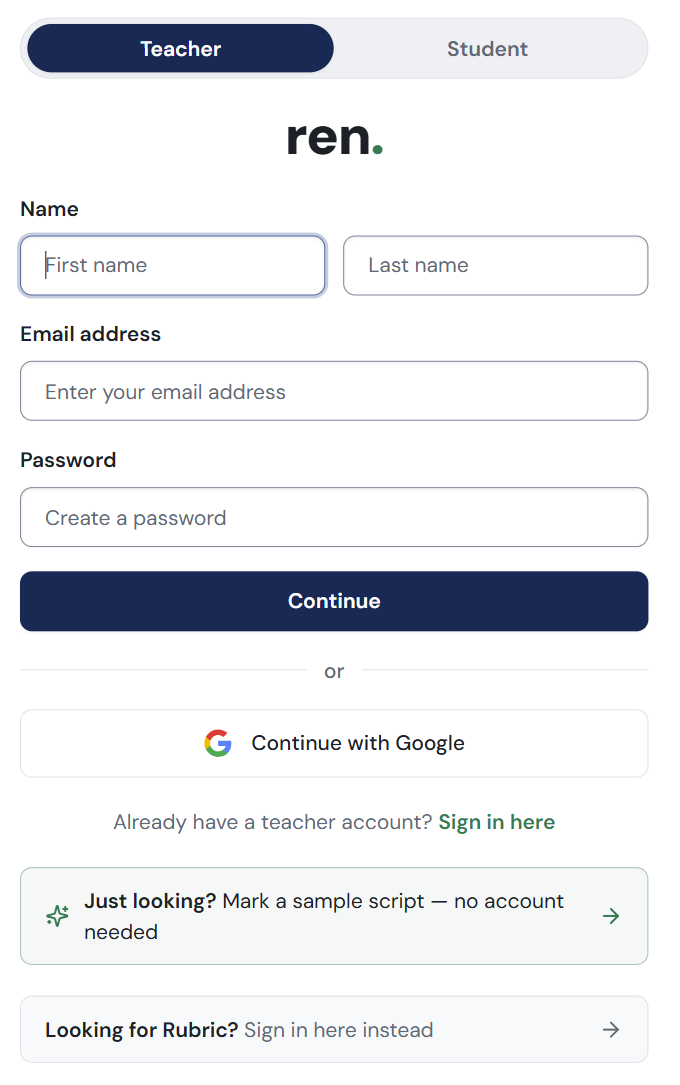
Under the form:
- Already have a teacher account? Click Sign in here.
- Just looking? Click Mark a sample script to try marking without an account. Nothing you do there is saved.
- Looking for Rubric? Click Sign in here instead. Rubric has its own sign-in page.
Join your school
After you sign up, you see Account Approval Pending. This is normal: your school needs to let you in. The page says your account is under review, and that it refreshes by itself once you're approved.
Ask your school's ren. administrator for it. It is up to 8 letters and numbers.
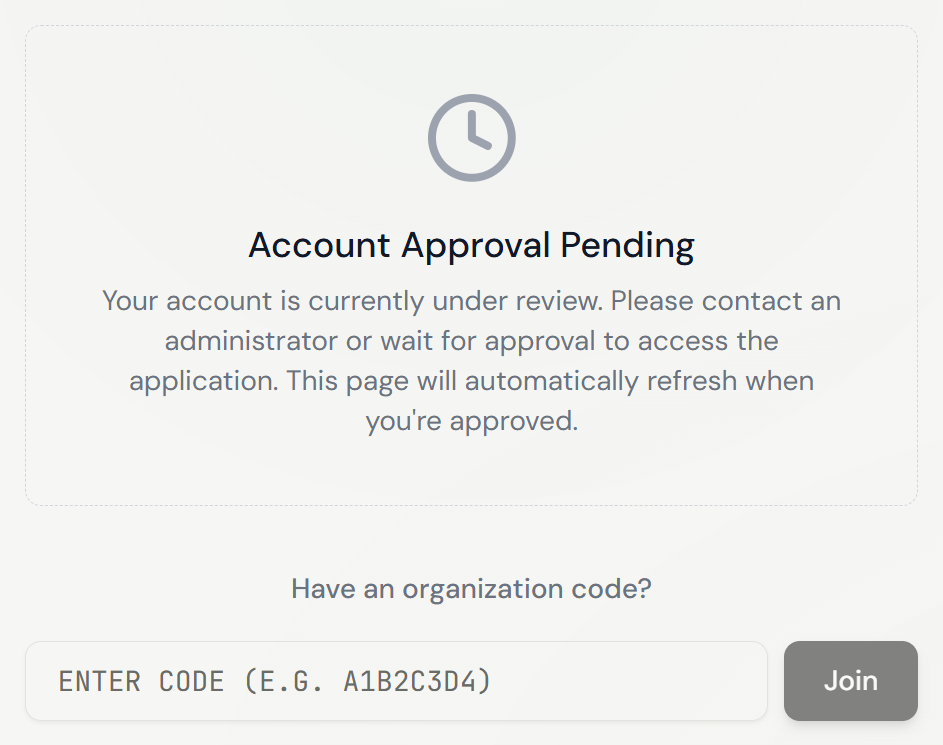
To get in straight away:
- Find the box under Have an organization code? It says ENTER CODE (E.G. A1B2C3D4).
- Type your school's code.
- Click
Join. A message appears: Successfully joined organization! Your home page (your dashboard) opens.
No code? Leave the page and come back later. Most accounts are approved within a day. Once your school approves you, the page lets you in by itself.
While you wait, you can click While you wait on the same page to mark a sample script. Nothing you do there is saved.
If you signed up with the wrong email, click Switch account at the top of the page.
Sign back in
- Go to renlearn.app/sign-in.
- Check that the Teacher tab is selected.
- Type your Email address and Password.
- Click
Sign in. Your home page opens.
If you signed up with Google, click Continue with Google instead. No account yet? Click Sign up here under Need a teacher account?
Reset a forgotten password
- On the sign-in page, click Forgot password? under the
Sign inbutton. - Reset your password opens. Type your Email address, then click
Send reset code. - Check your email opens. Type the code we sent, then click
Verify code. - Set a new password opens. Type a New password, then click
Set new password. You are signed in straight away.
Changed your mind? Click Back to sign in. If you see Code has expired. Please go back and request a new one., start again from Forgot password?