Choose a paper type
The paper type decides how ren. marks your assignment. Choosing the wrong one is the most common setup mistake, so it is worth a quick check.
You choose it in Step 1: Grading of the Create assignment pop-up.
The Paper type dropdown lists the papers set up for your class's subject, so the list is different for each subject. Each option shows how it is marked in brackets: (Structured) or (Essay). Custom... is always at the bottom. For example, an H1 General Paper class shows:
- Comprehension (Structured)
- Essay (Essay)
- Custom...
If your subject has no papers set up yet, there is no dropdown. Type a name for the paper instead, and tick Mark this as one whole piece of work if it is an essay.
Quick guide
- Does the paper have numbered questions, each with its own marks? Choose an option marked (Structured).
- Is it one piece of writing marked against criteria such as Content and Language? Choose an option marked (Essay). This includes reports, portfolios and projects.
- Is it a mix, or does nothing in the list match? Choose Custom....
Structured
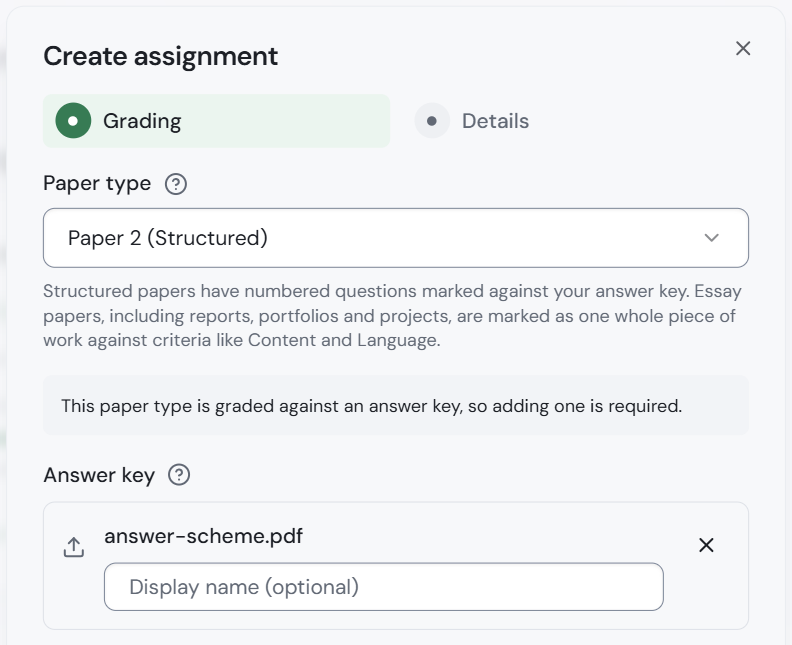
Marked question by question, each with its own marks. For example, Paper 2 structured questions or a multiple choice (MCQ) paper.
- You must upload your answer scheme (your marking scheme) in the Answer key box.
- After you create the assignment, ren. reads each question and its marks from it. You then check them. See Check the answer scheme.
Essay
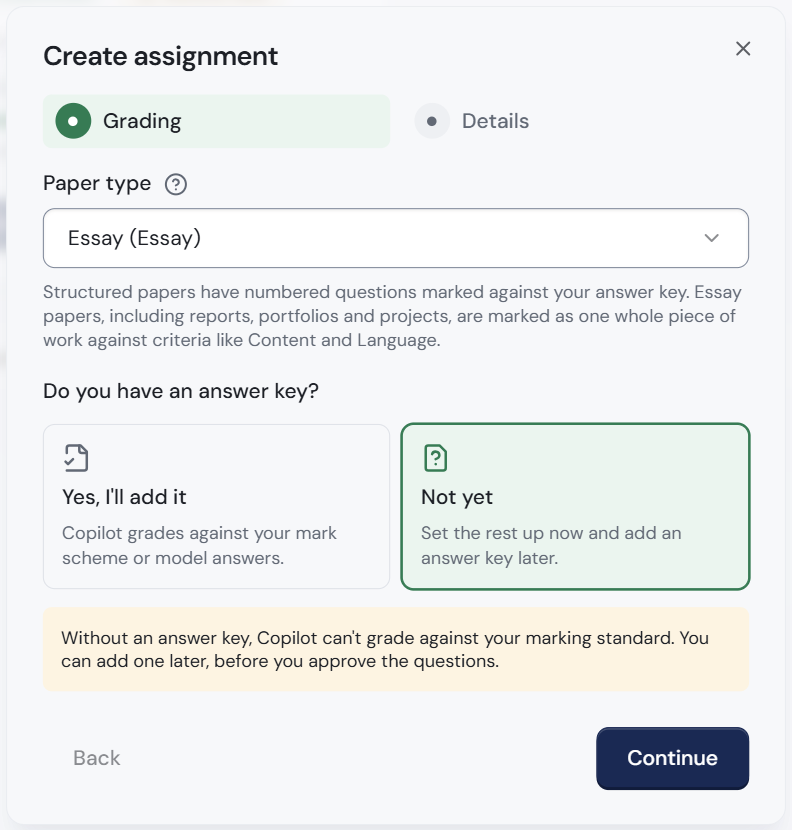
Marked as one whole piece of work, against criteria such as Content and Language. ren. also writes feedback on each paragraph.
An answer scheme is optional for essays. Under Do you have an answer key?, choose one:
- Yes, I'll add it: upload your rubric, band descriptors or model answers. ren. marks against them.
- Not yet: set up the rest now and add an answer scheme later. Without one, ren. cannot mark to your department's standard.
Custom
Choose Custom... at the bottom of the dropdown when no paper type fits, or when a paper mixes types.
- Click the Paper type dropdown and choose Custom....
- Type a name in Custom paper type name, for example Mid-year mixed paper.
- Decide how it is marked:
- Leave Mark this as one whole piece of work unticked for numbered questions marked against an answer scheme.
- Tick it for essays, reports, portfolios or projects. Then add at least one grading component (a part the work is marked on, with its marks), such as Content and Language.
You can still change the grading components until marking starts: on the assignment page, click Assignment settings and look under Components. Once ren. starts marking any script, they show Locked once marking has begun and cannot be changed.
Subject tips
For advice on each JC paper, see the subject pages: