Check and change marks
ren. suggests marks. You check them, change any you disagree with, and add your own comments. You always have the final say.
To start, open the assignment and click a student's row. Their script opens in the marking screen. To check one question for the whole class instead, see Mark by student or by question.
Practise this firstTry marking a sample script: accept, change and add marks. Takes about a minute. Uses sample students, and nothing is saved.Open practiceHow to read the boxes on the script
- A dashed box is ren.'s suggested mark. Students do not see it unless you accept it.
- A solid box is a mark you have accepted or made yourself.
Click a box to see its mark and comment in a panel on the right.
Accept a mark you agree with
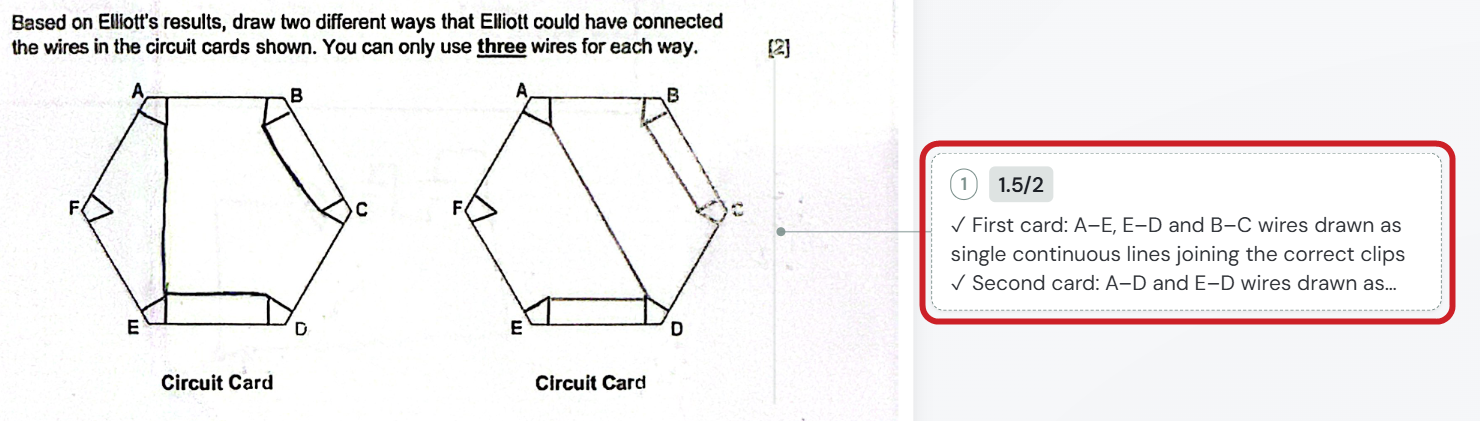
- Click the dashed box. It turns solid, and its panel opens on the right.
To accept every suggestion at once, click the tick icon at the top of the screen, Accept all n suggestions. Then change the few you disagree with.
Change a mark you disagree with
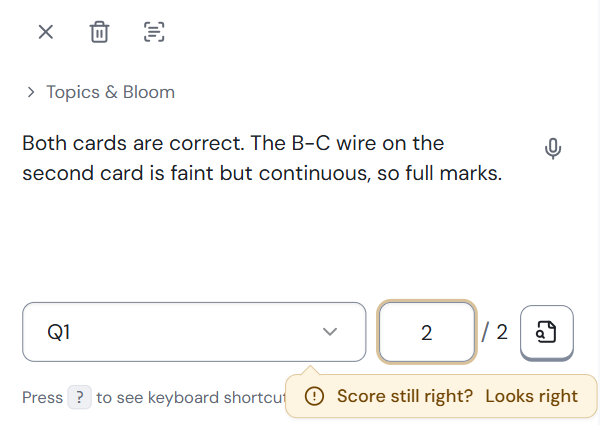
- Click the box. If it is dashed, this accepts it first. Its panel opens on the right.
- At the bottom of the panel, click the first number box (the marks given) and type the new mark.
- To change the comment, click the comment text and edit it. The student sees this comment.
- If ren. asks Score still right?, click Looks right to keep the mark, or change it.
Your change saves by itself. Next to the student's name, the top bar shows Saving…, then Saved.
Under the panel, a hint says Press ? to see keyboard shortcuts. See Keyboard shortcuts.
Add your own mark or comment
- In the toolbar on the left of the script, click Snippet.
- Click and drag a box over the part of the answer you want to mark. A box appears and the panel opens.
- Choose the question number from the Q# box at the bottom of the panel.
- Type your comment, then the marks in the first number box.
To remove a mark, click its box, then click the bin icon at the top of the panel.
Your changes are saved automatically
There is no save button to remember. Look next to the student's name in the top bar:
- Saved: everything is kept. You can close the tab safely.
- Saving…: wait a moment.
- Not saved: ren. could not save. It tries again by itself.
Keep the page open and check your internet connection. Wait for Saved before you close the tab, or your latest changes may be lost. If it stops trying, change the mark again to try once more.
Other save messages you might see
- Not saved yet: no grade has been saved for this script yet.
- Not saved. Choose a version.: someone else saved these marks while you were editing. Click the label to choose which version to keep.
- Saved locally: your changes are kept on this device only. They are not saved for the teacher who owns the class.
- Not saved. Script is complete.: the script was completed somewhere else, so your change was not saved. Your text stays on the page, so copy it if you need it.
The overall feedback on the Feedback tab saves as you type too. Students see it only when you release results.
Regrade… (ren. marks the script again) keeps marks you wrote yourself. It also keeps ren.'s marks you accepted, unless you tick the box to remove them. See Regrade before you use it.
If a question is missing
If ren. cannot find an answer, its question number turns red, and a banner says, for example, 1 question is missing from this upload. The banner explains that the scan is probably incomplete, so check it before you finalise.
- The student did answer it: click Snippet, draw a box over the answer, choose the question number, then type your comment and the marks.
- The student skipped it: click Student left these out on the banner, then click Yes, they left these out.
Not sure? Click Show me how on the banner.
Any question without a mark counts as 0 when you finish the script.
Essays: Content and Language
Essay papers have one score for each part, such as Content /30 and Language /20.
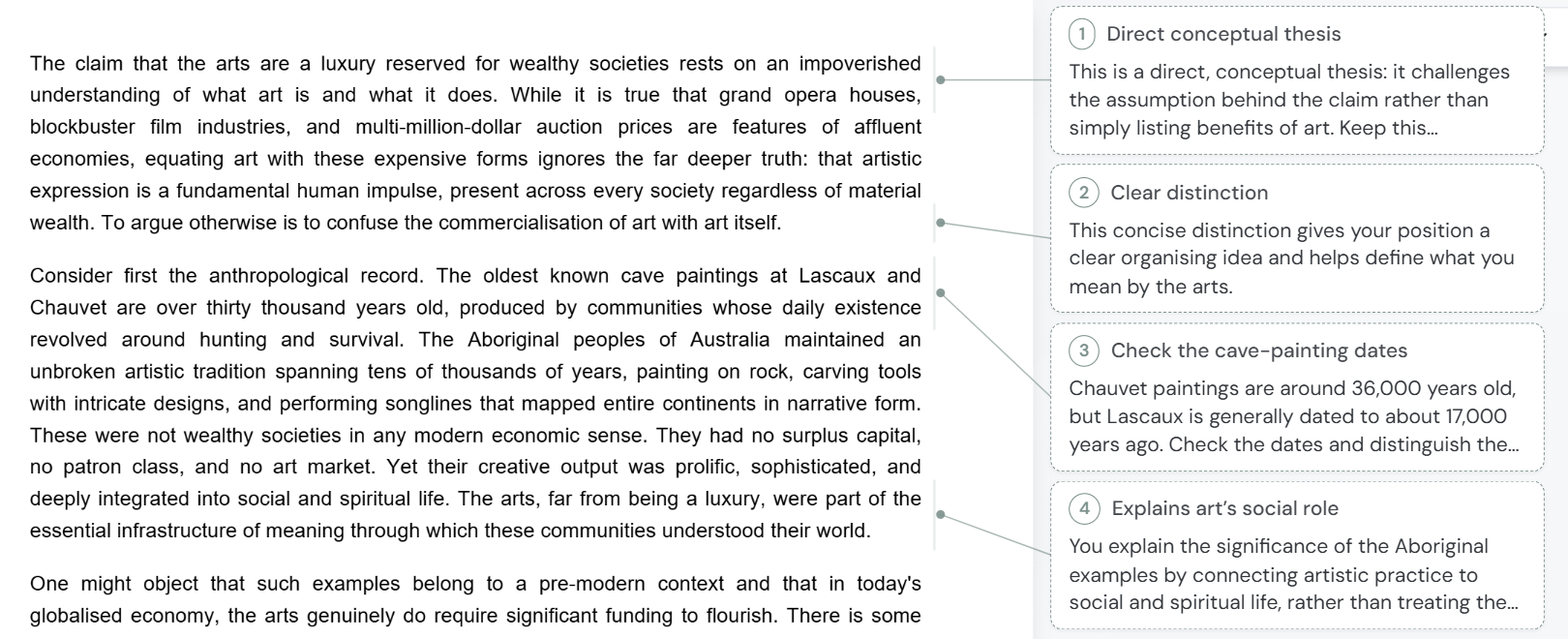
ren.'s comments appear as numbered cards beside the essay, each linked to the passage it refers to. Click a card to read or edit it.
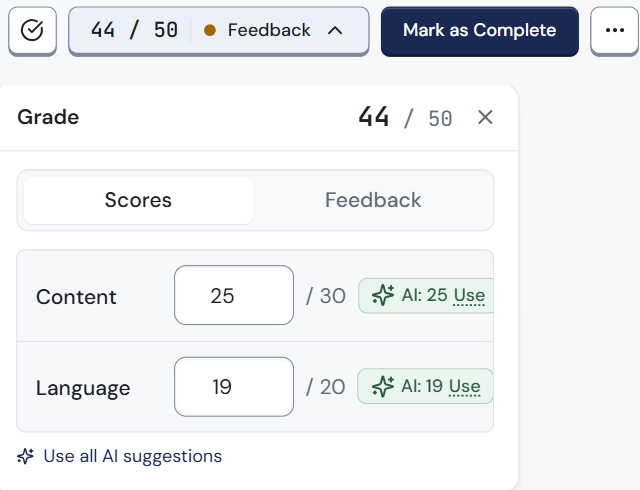
- Click the score at the top of the screen, for example 44 / 50. The Grade panel opens.
- Under Scores, type your score in each box. ren.'s own score is beside it, for example AI: 25. Click Use to take it, or Use all AI suggestions for all of them.
- Click Feedback to read and edit the summary the student will see.
To close the panel, click the X at its top right.
When you have finished this script
- When you are happy with the marks, click Mark as Complete at the top right.
- A Mark as complete? box shows the grade and the overall feedback. Click Mark complete. Tick Don't ask again for this assignment to skip this box next time.
- If some of ren.'s suggestions are not accepted yet, the box says so. Click Accept n suggestions and complete to use them, or Complete without them. Anything without a mark counts as 0. To change something first, click Edit grade or feedback.
- The next script that still needs marking opens. The finished one moves to the Marked group.
Finish the whole class at once: on the assignment page, click Accept all marks above the To review list.
Before your first release, nobody. After your first release, the student sees it as soon as you click Mark as Complete. See Release results.
Change a mark on a finished script
A finished script is locked, so its marks cannot be changed by accident.
- Open the assignment and click the student's row in the Marked group.
- The script opens in a view-only page. Click Unfinalise at the top, next to the ... menu. The script goes back to To review, and the student stops seeing it.
- Open the script again, change the marks, then click Mark as Complete again.
While the script is unfinalised, the student cannot see any marks or feedback for it. If you have already released results, the new marks show as soon as you mark it complete again.
What's next
- Release results when the whole class is marked.
- The marking screen: what every button does.