Start marking
Before you start
- Your students' scripts are uploaded. See Upload scripts.
- You have checked the answer scheme (your marking scheme). See Check the answer scheme.
Uploading scripts does not start marking. You decide when. New scripts show Not graded yet until you start.
Start marking

- Open the assignment. A banner says Grading hasn't started yet. It asks you to check that the answer scheme looks right, and shows how many submissions are waiting, for example 3 submissions are waiting. Not sure? Click Show me how on the banner.
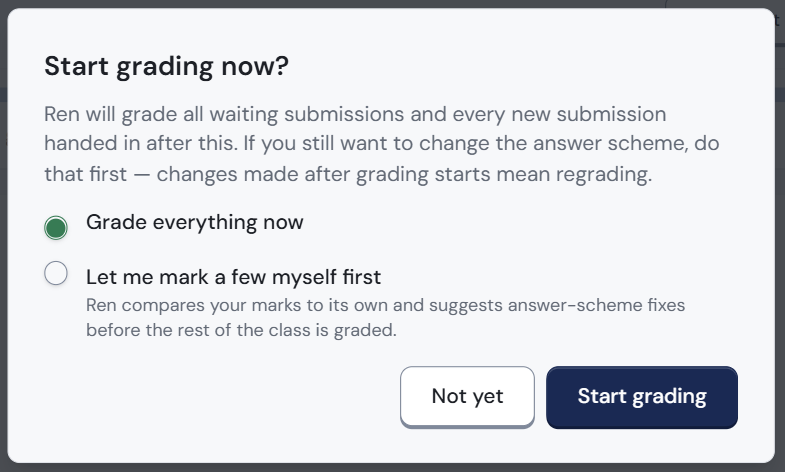
- Click Start grading on the banner. A pop-up opens: Start grading now?
- ren. will mark all waiting scripts, and every new script handed in after this.
- Choose one option. Grade everything now is picked unless you change it.
- Grade everything now: ren. marks every script in one go, then you check its marks by student or by question. Good for a paper you have used before.
- Let me mark a few myself first: you mark up to three scripts first, so ren. learns how you mark. It compares your marks to its own and suggests fixes to the answer scheme before the rest of the class is marked. Good for a new paper. See Mark a few first.
- Click Start grading. If you chose to mark a few first, this button says Mark a few first instead.
- The page shows, for example, Ren is grading 12 submissions. Scripts become ready one by one. You can leave the page and come back.
Not ready yet? Click Not yet. Nothing is marked, and you can come back later.
Make any changes to the answer scheme before you click Start grading. Changing it later means scripts need marking again.
See which scripts are marked
The assignment page sorts scripts into three groups:
- Not handed in (yellow): the student has not handed anything in. Use the upload icon on the row to upload their script for them.
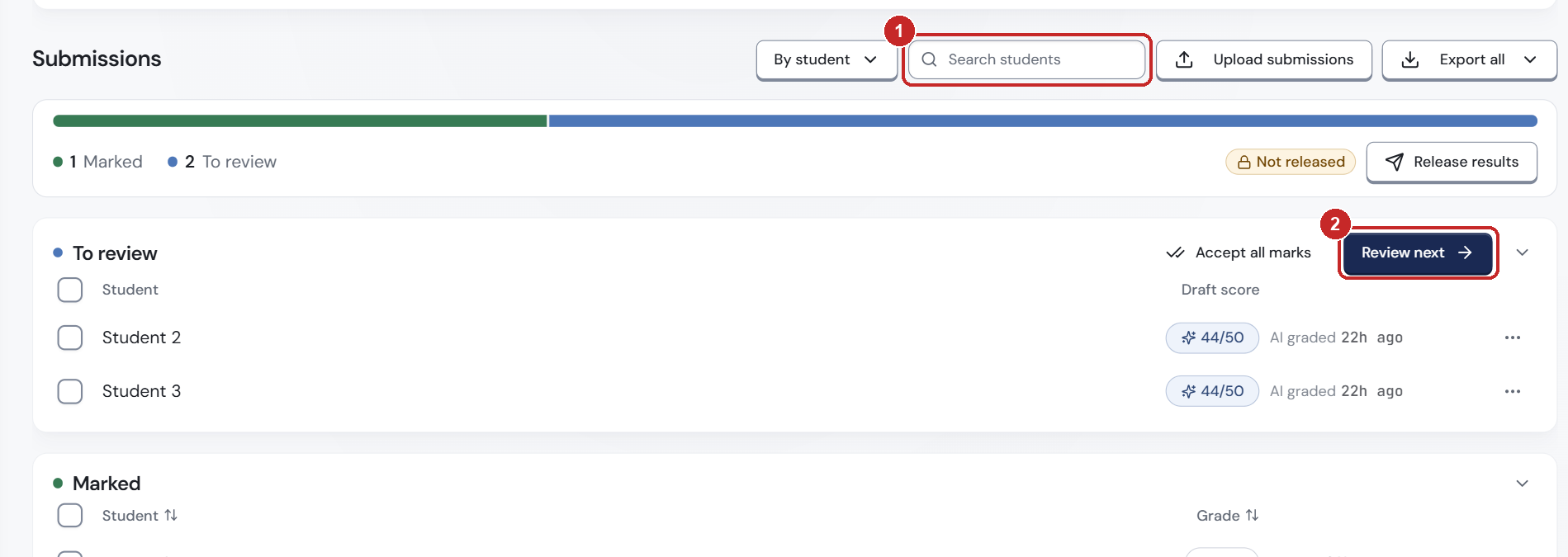
- To review (blue): the script is uploaded. It is waiting, being marked by ren., or ready for you to check.
- Marked (green): you have finished checking the script. Students cannot see their marks and feedback until you release results.
To find a script quickly:
- Type a name into Search students at the top of the list.
- Or click Review next on the To review group to open the next script that needs you.
- Or click a student's row to open their script.
Each row in To review shows ren.'s draft score (for example 44/50) and when ren. marked it (AI graded). A row can also show a badge such as Pages missing. Rows in Marked show the final grade instead. While ren. is still marking, All and Processing tabs appear above the list.
The bar above the groups shows your progress (for example 1 Marked and 2 To review), with a Not released label until you click Release results.
If the answer scheme changed after marking
A banner says which question changed and how many answers used the old version. Finished scripts it affects show Check marks; open each one, click Unfinalise, then choose Keep this mark or Re-mark for each changed question. See If you change it after marking has started.
What's next
- Mark a few first if this is a new paper.
- Mark by student or by question: choose how to check ren.'s marks.