What your students see
Students see nothing of their marks or comments until you release results. Use this page when a student asks "Where are my marks?"
Practise this firstSee a released script the way a student sees it, in a practice class. Takes about a minute. Uses sample students, and nothing is saved.Open practiceBefore and after you release
| Before you release | After you release | |
|---|---|---|
| Status the student sees | Marking (or Submitted in their list) | A green Marked tag and their score, for example 44/50 |
| Marks and comments | None | Everything you accepted or wrote |
| Their home page | Not listed | Listed under Marked Submissions, with their score, for example 82% |
Even a script you have finished looks like one you have not reached yet, until you release. Once you start marking, students also cannot change the files they uploaded.
Whether students get an email depends on Email my students when their results are released in Settings. If it is off, they are not emailed and see their results the next time they open ren. See Release results.
If you hide or change results later
- Hide results: everything goes back to how it looked before you released.
- Unfinalise one script: only that student loses their marks, until you mark the script complete again. The new marks then show straight away; you do not need to release again.
What the feedback page looks like
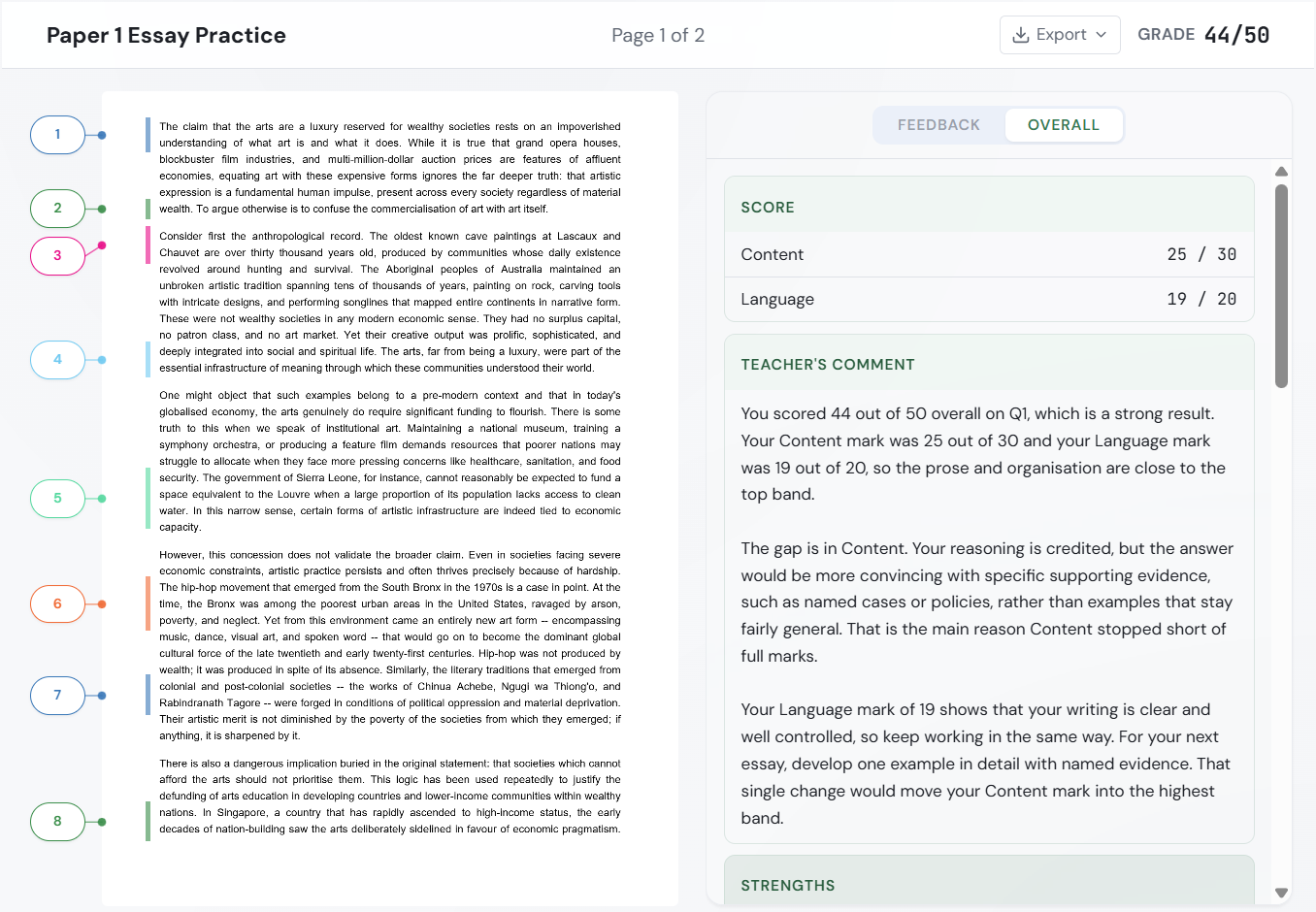
- Left: their script, with coloured, numbered boxes where you or ren. commented. They click a box to read the comment. The top shows which page they are on, for example Page 1 of 2.
- Right: two tabs, Feedback and Overall, for both Structured and Essay papers.
- Feedback: each comment, with its question (for example Q1) and, on a Structured paper, its marks (for example +2). A flag button on each comment lets the student report a problem with it.
- Overall: your comment (Teacher's comment). On an Essay paper it also shows Score (the marks for each criterion, for example Content 25 / 30), then Strengths, Areas for Improvement and Action Steps.
- Top right: the Export menu, to download the marked script, and their grade (for example 44/50).
The Student Guide (a separate PDF) shows students how to join, hand in work and read feedback.
If you hid the scores
If you unticked Show scores to students, students see your comments but no marks anywhere: no grade, no marks on questions, and Graded instead of a percentage. You still see the marks, and they still count in your reports. See Hide the marks but still give feedback.
Help a student find their feedback
Give them the student guide on viewing feedback.
How students hand in work, in case they ask
- They sign up at renlearn.app/student and join your class with the class code or the invite email.
- They open the assignment and upload their script (PDF, Word, PowerPoint, PNG or JPG, up to 100 MB per file). They can also click Scan QR to upload to use their phone camera.
You can also upload scripts for them. See Upload students' scripts.