Ask the marking chat for help
Ask the marking chat about the script you are marking. It can explain a mark, give a second opinion on a borderline answer, or draft feedback. It has read the student's script and your answer scheme (your marking scheme).
The marking chat never changes a mark by itself. Nothing changes until you click Approve.
Open the marking chat
- Open a student's script on the marking screen.
- Click Marking chat at the bottom right of the screen.
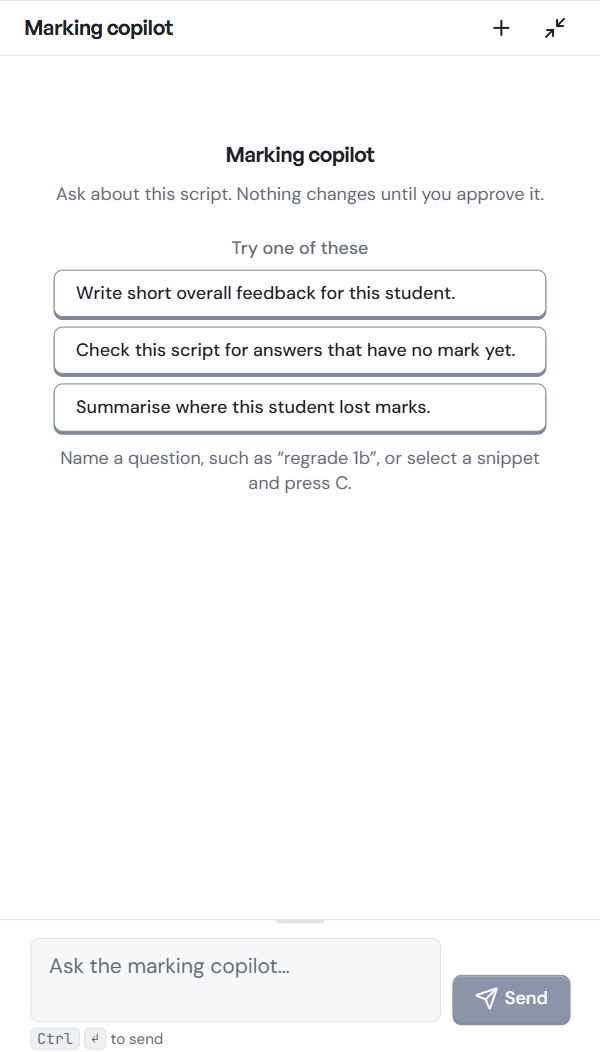
- A panel called Marking copilot opens on the right. It says Ask about this script. Nothing changes until you approve it. The box at the bottom says Ask the marking copilot….
To make the panel smaller again, click the shrink icon (two arrows pointing inwards) at its top right.
Ask a question
- Under Try one of these, click a suggested question:
- Write short overall feedback for this student.
- Check this script for answers that have no mark yet.
- Summarise where this student lost marks.
- Or type your own question in the box at the bottom.
- Click Send, or press
Ctrl+Enter.
To ask about one question, name it in your message, for example regrade 1b.
To ask about one part of the script:
- Click the box on the script you want to ask about.
- Press
C, or click the add to chat icon at the top of the box's panel. - Type your question and click Send.
If a mark looks wrong, you can also click the sparkle icon (Doesn't seem right?) in the box's panel. This sends the box to the chat so you can say what is wrong.
Approve or dismiss a suggested change
A suggested change shows as a card marked Proposed, for a comment, a mark, or the overall feedback.
- If it suggests a change, read it.
- Click Approve to use it. The mark or comment on the script updates.
- Or click Dismiss to leave things as they are.
Some cards suggest a change to the answer scheme itself. These say This updates the marking guide for every student in this assignment. Approve those only if you want the change for the whole class.
To see what the chat read before it answered, click Used n sources under the card.
Read every proposed change as you would a colleague's suggestion. Approved changes are shown to the student when results are released.
Start a new conversation
- Click + (New chat) at the top of the chat to start a new conversation.
- Use the menu at the top of the chat to go back to an earlier conversation.
What's next
- Check and change marks
- Your marking style: set how ren. writes feedback for you.