Teach ren. your marking style
ren. learns how you write feedback from the scripts you mark. You can also give it your own written instructions, such as how strictly to mark.
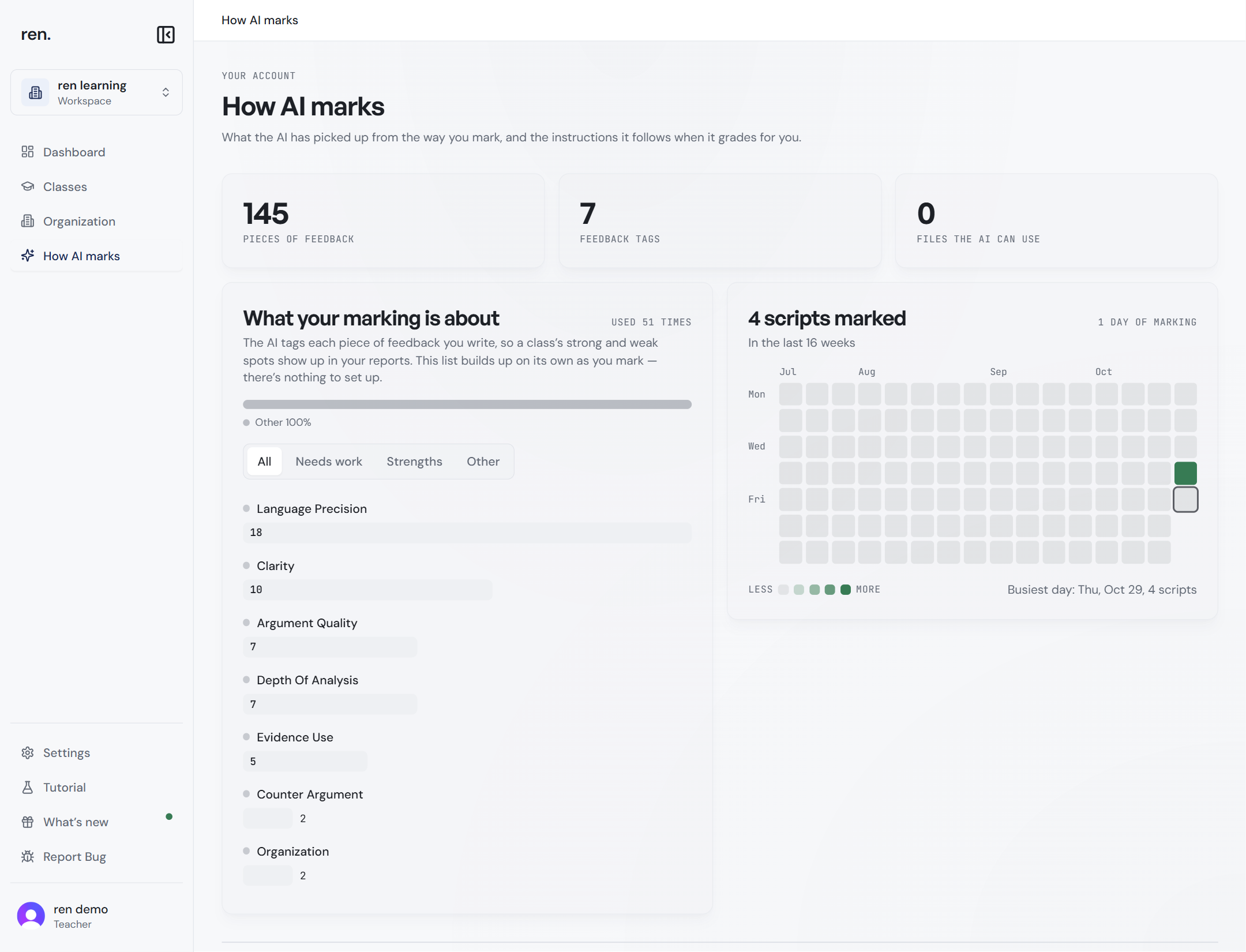
Both are on the How AI marks page. Click How AI marks in the left sidebar to open it.
Write your own instructions
Your own instructions are notes ren. follows when it marks, for things it cannot read off the paper. For example: "Award error carried forward (ECF) marks if the student's method is correct even when an earlier value is wrong."
- On the How AI marks page, find Your own instructions.
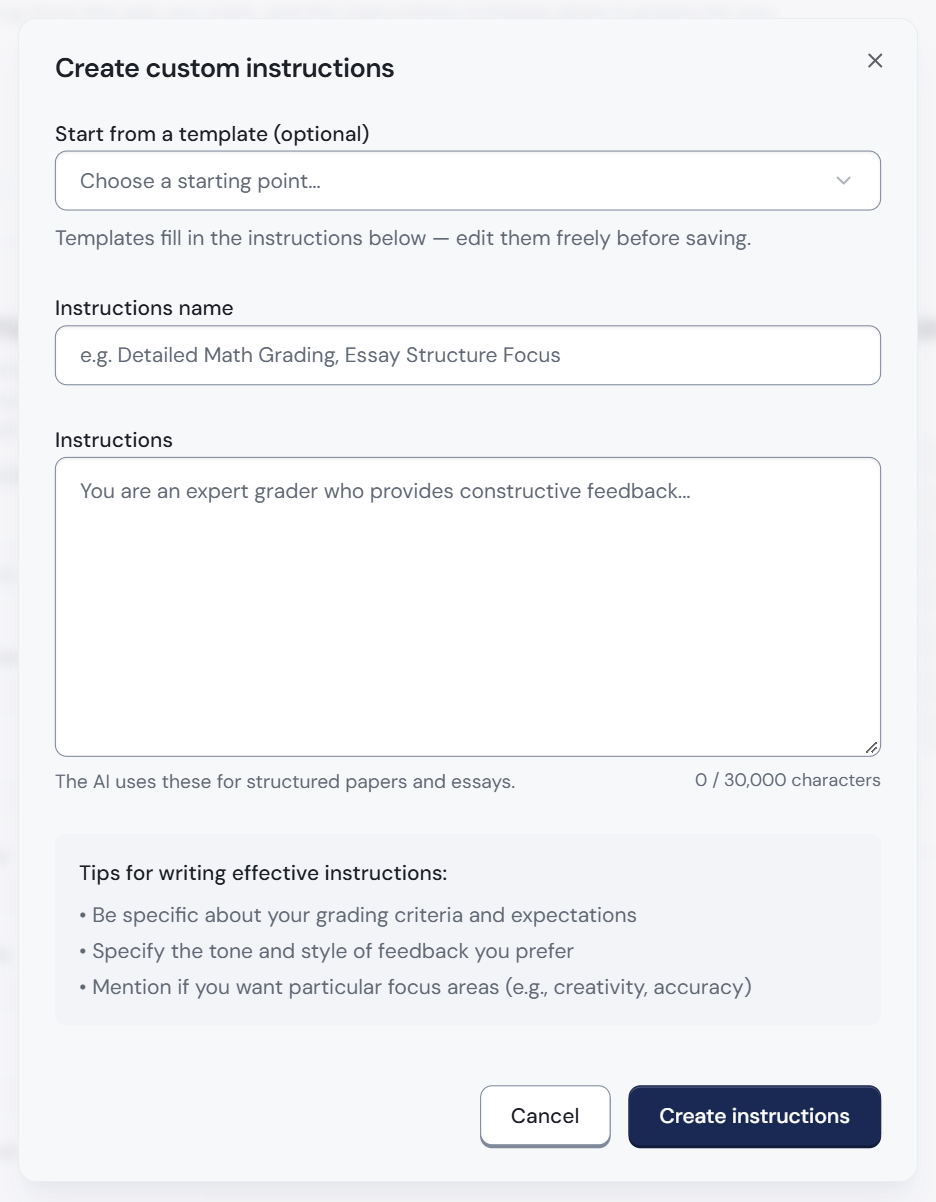
- Click Add instructions. The Create custom instructions pop-up opens.
- Optional: pick a starting point from Start from a template (optional). You can edit the text it fills in.
- Type a name in Instructions name, for example Physics Paper 3: ECF.
- Type your instructions in plain English in Instructions. They work for both structured and essay papers.
- Click Create instructions.
Saving instructions does not change any marks. They only take effect on assignments you attach them to.
Use your instructions on an assignment
- Create an assignment as usual. See Create an assignment.
- In the first step, click Advanced grading options.
- Choose your instructions from the Custom grading instructions menu.
If you do not choose any, ren. uses its standard instructions (Use default grading instructions).
If you edit instructions later, the change applies to future marking on every assignment that uses them. Marks already given do not change.
Check how ren. writes feedback
From the comments you leave, ren. writes a short guide to how you like feedback written: one for Structured papers and one for Essay papers. It follows this guide when it drafts feedback.
- On the How AI marks page, scroll to How you like feedback written.
- Read the guide for each paper type.
- To change it in your own words, click Edit.
- Type your changes.
- Click Save. Unlike marking, this box does not save by itself.
If a guide is empty, mark a few papers of that type first.
When you mark a few scripts first, ren. may suggest changes to this guide. It never changes your guide without asking.
Rewrite from my marking writes the guide again from scratch, from your past marking. Anything you typed into the guide yourself is replaced. ren. asks you to confirm with Rewrite first.
The rest of the page
Nothing to set up here. It fills in as you mark.
What the rest of the page shows
- Pieces of feedback: how many comments ren. has learned from.
- Feedback tags: how many themes ren. has spotted in your comments, such as Clarity or Argument Quality.
- Files the AI can use: how many documents ren. has read, such as answer schemes.
- What your marking is about: the themes in your comments. They help your reports show a class's strong and weak spots. Use Needs work, Strengths and Other to filter them.
- Scripts marked: a calendar showing the days you marked. Darker squares mean more scripts.
What's next
- Create an assignment and attach your instructions.
- Mark a few first on your next new paper.